Ansluta LEGO® MINDSTORMS® EV3 till Bluetooth®
Du kan använda Bluetooth® för att kommunicera trådlöst mellan programvaran LEGO® MINDSTORMS® EV3 P-Brick och programvaran EV3! Bluetooth har kortare räckvidd än WiFi, men använder mindre ström och du behöver ingen trådlös router för att installera den.
Följ de här stegen för att konfigurera Bluetooth på din P-Brick:
- Använd pilknapparna för att välja Bluetooth i skärmen "Inställningar" på denprogrammerbara tegelstenen. Ett Popup-fönster visas med en lista över alternativ.
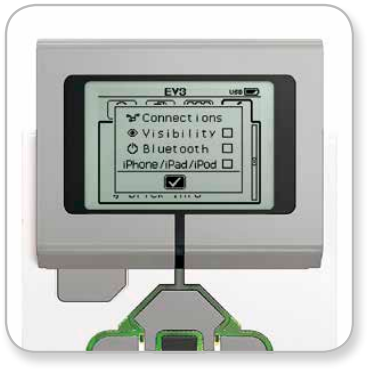
- Använd upp- och nedknappen för att navigera, markera "Bluetooth" och tryck sedan på mittknappen så att ett kryss visas i Bluetooth-rutan. Du har aktiverat Bluetooth och bör se en ikon uppe till vänster om den programmerbara tegelstenen.
Om alternativet "iPhone/iPad/iPod" är markerat kan du inte ansluta till något annat än en iOS-enhet som en iPhone, iPad eller iPod Touch. För alla andra anslutningar ska du låta den här inställningen vara avmarkerad.
För att ansluta programvaran till din programmerbara tegelsten
macOS
- Starta programvaran LEGO MINDSTORMS EV3 och anslut din programmerbara tegelsten till Mac med hjälp av USB kabel.
- I EV3-programvaran går du till sidan Hårdvara och klickar på Uppdatera.
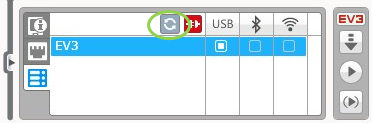
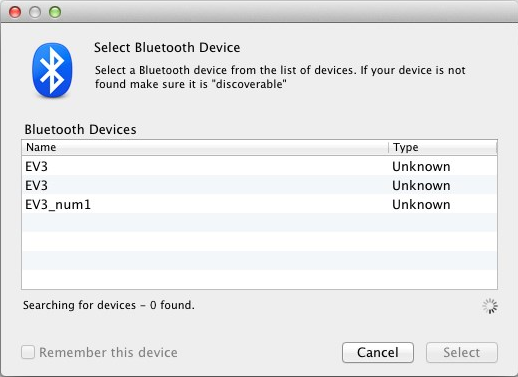
- Ett nytt fönster öppnas med en lista över alla tidigare anslutna och tillgängliga programmerbara tegelstenar. Det kan ta några minuter innan din programmerbara tegelsten visas. Hitta den som du vill ansluta till och välj den.
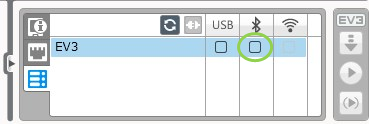
- Bluetooth är nu tillgänglig som en anslutningstyp. Välj den genom att klicka på knappen under Bluetooth ikonen.
- Bekräfta anslutningen och lösenordet på dinprogrammerbara tegelsten.
- Ange "1234" som lösenkod i fönstret "Parkopplingsförfrågan från: EV3".
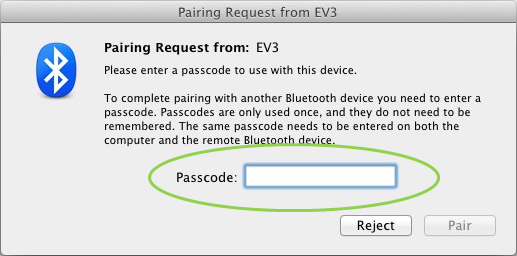
- Den programmerbara tegelstenen är nu ansluten till Mac med hjälp av Bluetooth.
Om din programmerbara tegelsten aldrig visas i listan över tillgängliga programmerbara tegelstenar startar du om din programmerbara tegelsten och fortsätter med följande steg: - Klicka på ikonen Systeminställningar
 i dockan och välj Bluetooth.
- Välj "Konfigurera ny enhet" eller "Lägg till ny enhet".
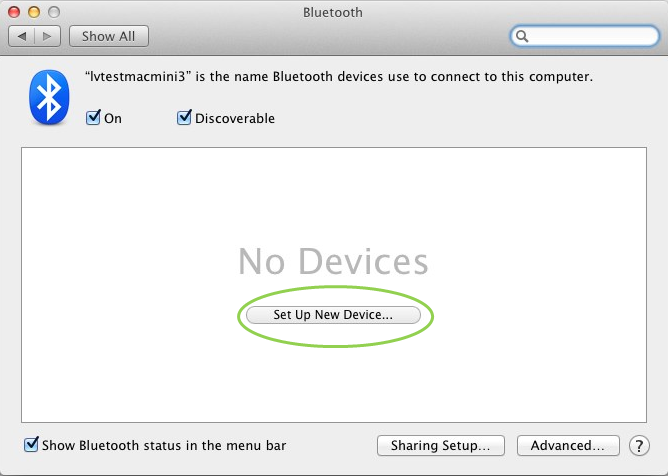
- Bluetooth-installationsassistenten söker efter alla enheter som är tillgängliga via Bluetooth. Det kan ta några minuter innan din programmerbara tegelsten visas. När du hittar den väljer du den och klickar på "Fortsätt".
- Bekräfta anslutningen och lösenordet på dinprogrammerbara tegelsten.
- Det första försöket misslyckas troligen eftersom Macs standardkod är inställd på "0000".
- Klicka på "Alternativ för lösenkoder".
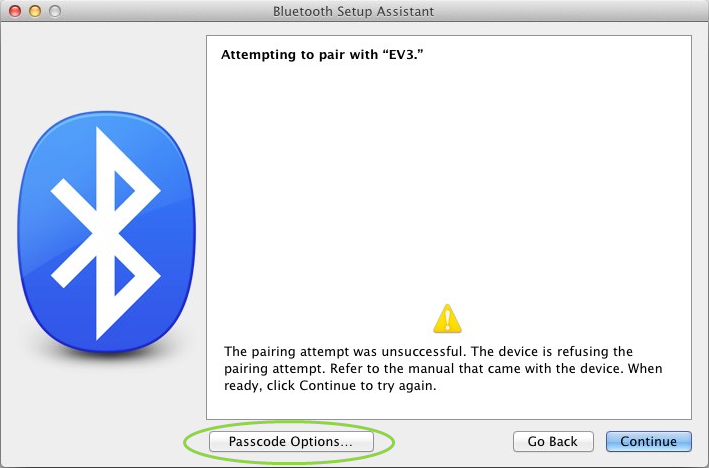
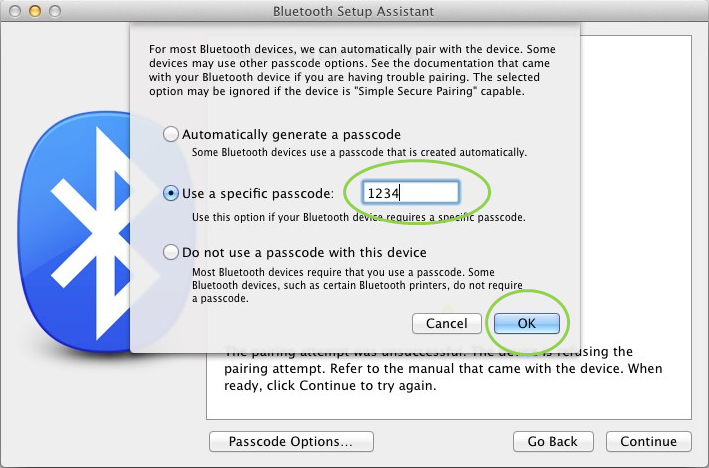
- Välj "Använd en specifik lösenkod" och ange "1234" och klicka sedan på "OK".
- Bekräfta anslutningen och lösenordet på dinprogrammerbara tegelsten.
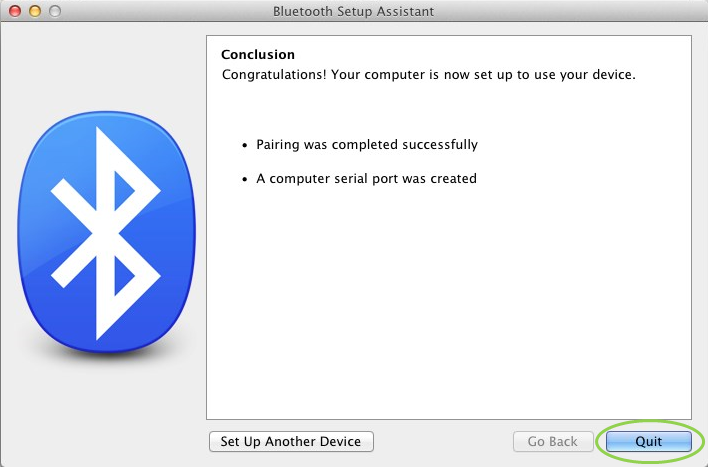
- Nu visas ett fönster som bekräftar att din programmerbara tegelsten har kopplats ihop. Klicka på "Quit" (avsluta).
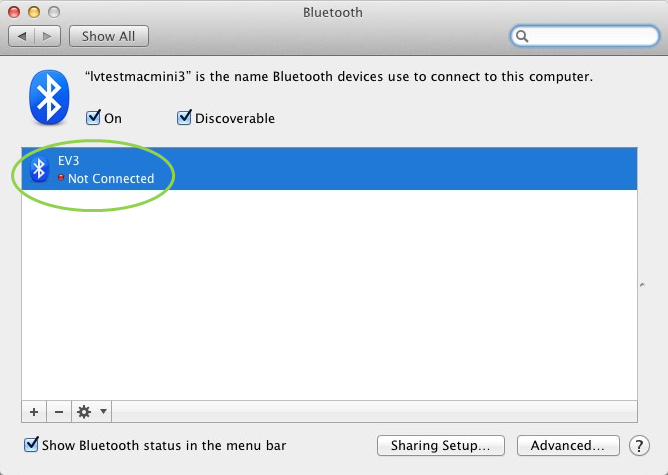
- Din P-Brick visas nu i listan över kända Bluetooth-enheter.
- Upprepa steg 1-7.
Windows
- I EV3-programvaran går du till sidan Hårdvara och klickar på Uppdatera.
- Din programmerbara tegelsten kommer att vara tillgänglig via Bluetooth. Klicka på knappen under Bluetooth-ikonen för att ansluta.
- Datorn ansluter till din programmerbara tegelsten. Det kan hända att du måste bekräfta anslutningen och lösenordet "1234" på din programmerbara tegelsten i detta skede.
Om du inte kan se den programmerbara tegelstenen på maskinvarusidan i programmet fortsätter du med följande steg.
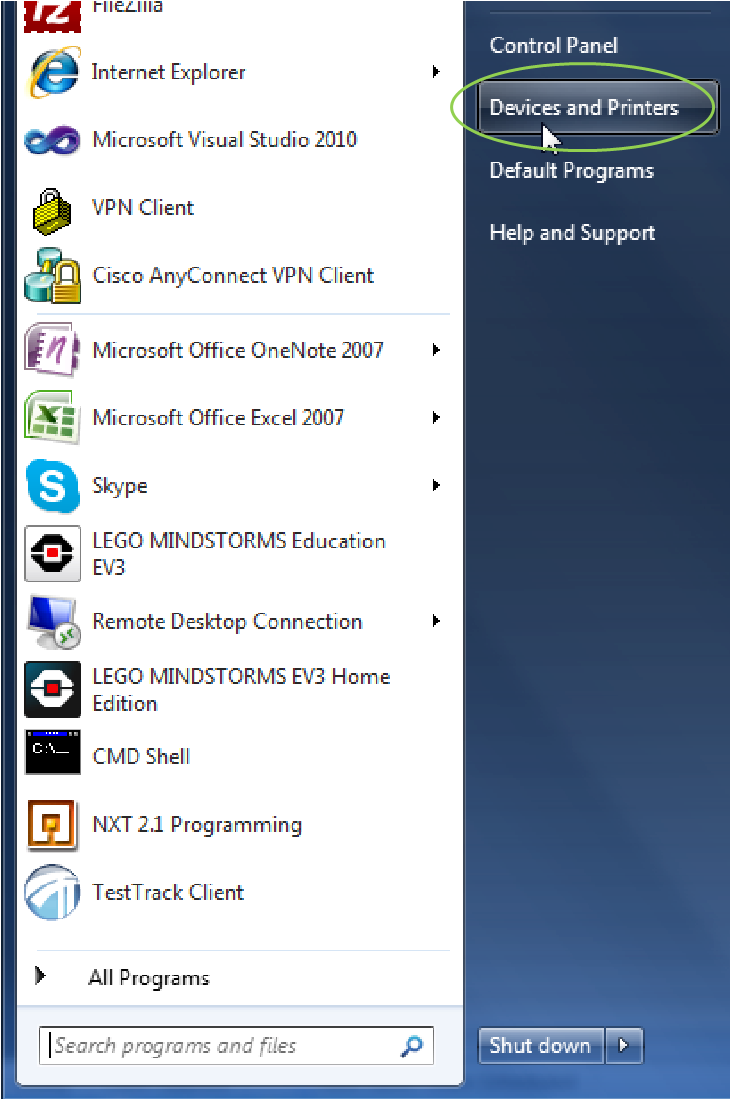
- Öppna Startmeny och klicka på "Enheter och skrivare".
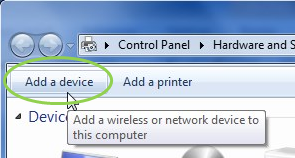
- Klicka på "Lägg till en enhet".
- Det tar en stund innan denprogrammerbara tegelstenen visas i listan över tillgängliga enheter. Välj den och tryck på "Nästa".
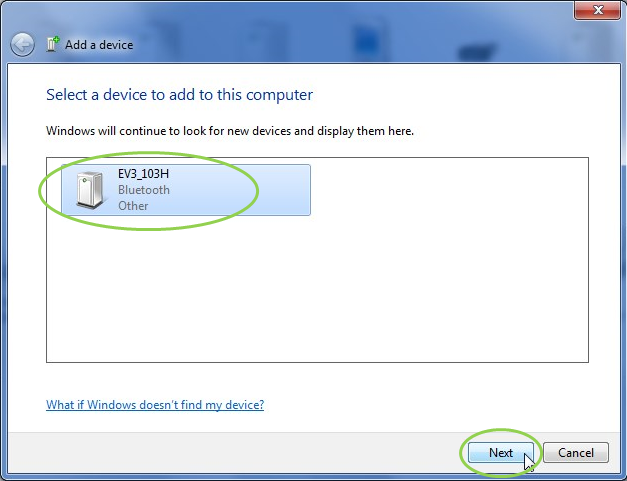
- PC försöker ansluta till denprogrammerbara tegelstenen.
- Bekräfta anslutning och lösenord på denprogrammerbara tegelstenen.
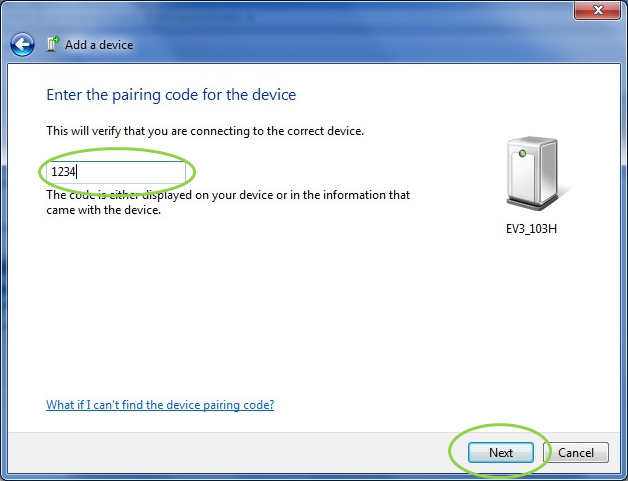
- På PC anger du "1234" som nedan och klickar på "Next".
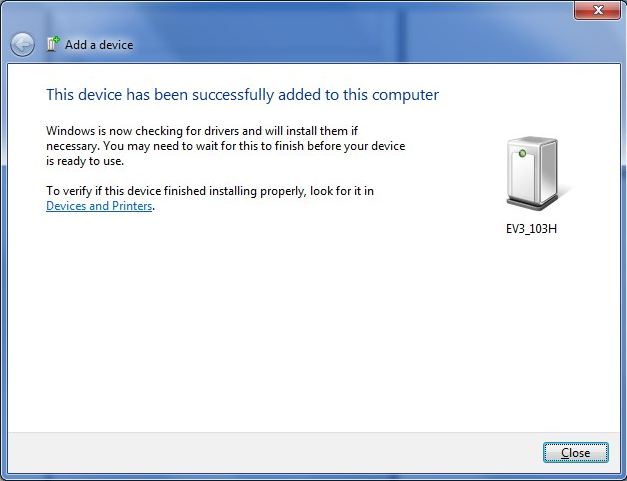
- När kopplingsprocessen är klar öppnas följande fönster.
- Upprepa steg 1-3.
Om du har några problem kan du vända dig till kontakta oss.