(0)

    Blocos de programação LEGO® Powered UP

    A app LEGO® Powered UP apresenta uma linguagem de programação simples e fácil de compreender que os fãs de todas as idades gostarão de aprender e de experimentar. Baseia-se numa experiência essencial que qualquer fã de LEGO compreenderá instintivamente - empilhar blocos uns ao lado dos outros e vê-los encaixar no lugar.

    Os blocos de programação existem em vários tipos e cores e estas características indicam o tipo de bloco que está a utilizar.

    Eis alguns exemplos de blocos de programação habitualmente utilizados. Se não tiver a certeza do que faz um bloco e este não estiver listado aqui, pode experimentá-lo na app ou consultar o nosso guia completo de blocos de programação. Parte da diversão do LEGO Powered UP está em experimentar, na brincadeira e na aprendizagem.

    Pale yellow circle with a triangle inside that indicates to play Blocos amarelos de fluxo

    Os blocos amarelos controlam o fluxo dos seus comandos. Pode utilizá-los para iniciar um programa, parar um programa, fazer uma pausa num programa ou até mesmo repetir comandos.

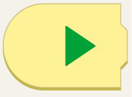
    Yellow programming block with a curved left side and a green play arrow.

    Este bloco inicia o programa.

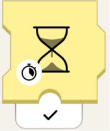
    Yellow programming block with an hourglass. At the bottom left of the hourglass, there is a stopwatch. Beneath the block there is a black checkmark.


    Este bloco de ampulheta fará com que o programa espere durante um número especificado de segundos.
    .

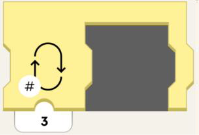
    Yellow programming block with an empty space to fit another programming block. On the left of the block is an image of a loop, and in the lower left-hand corner there is a number symbol. Beneath the block is the number 3.

    Este bloco repete a secção do programa um determinado número de vezes.

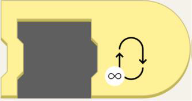
    Yellow programming block with an empty space to fit another programming block. On the block, to the right, is a loop with an infinity symbol in the lower left-hand corner.

    Este bloco vai repetir o programa para sempre!

    Orange circle with an orange eye inside. Blocos de sensor laranja

    Os blocos cor de laranja funcionam com o sensor de cor e de distância, com o sensor de inclinação do move hub, com o controlo remoto e com os sensores WeDo 2.0. Estes blocos desencadeiam uma ação quando um sensor do seu modelo detecta algo.

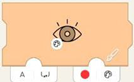
    Left-closed orange programming block with eye. On the lower left of the eye is an image of a painter's pallet. Tab on right has red circle next to a painter's pallet. Tab on left has the letter A and a bracket with in and out arrows.

    Utilize o sensor de cor para acionar um evento quando for detectada uma cor específica.
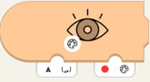
    Orange programming block with eye. On the lower left of the eye is an image of a painter's pallet. Lower right tab has a red circle next to a painter's pallet. On the left, there's a tab with the letter A and a bracket with in and out arrows.

    Aguarde que o sensor de cor detecte a cor escolhida no bloco.

    Orange programming block with eye and nub on top. On the lower left of the eye is an image of a painter's pallet. There's a white tab on the bottom with the letter A and a bracket with in and out arrows.

    Obtenha a cor atual medida pelo sensor.
    Orange programming block with eye and nub on top. On lower left of the eye is a scale of white to black. There's a white tab on the bottom with the letter A and a bracket with in and out arrows.Obtenha o nível de luz ambiente atual medido pelo sensor.

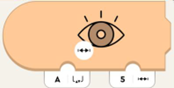
    Orange programming block with eye, closed on left side. On lower left of the eye is a line with hatch marks. Bottom left tab has letter A and a bracket with in and out arrows. On the right is a tab with 5 and a line with hatch marks.

    É acionado quando a distância medida pelo sensor é inferior à distância especificada.

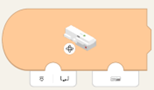
    Orange programming block with curved left side and image of Move Hub. On lower left of hub is a rotation symbol. Bottom left tab has image of hub port and bracket with in and out arrows. Bottom right has tab with image of hub.

    Utilize o giroscópio interno para acionar um evento com base na orientação do hub. Aguarde até que a orientação do hub seja igual à orientação do hub.

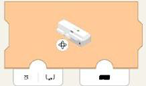
    Orange programming block with image of Move Hub. On lower left of hub is a rotation symbol. On bottom left tab is an image of hub port and bracket with in and out arrows. Bottom right tab has black rectangle.

    Aguarde até que a orientação do hub seja igual à orientação do hub.

    Green circle with a green propeller image. Blocos motores ou de movimento verdes

    Os blocos verdes põem o seu modelo em movimento! Pode distinguir entre motores com tacometro (para controlar a velocidade e a posição) e motores básicos (para conduzir a toda a velocidade).

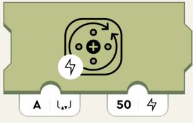
    Olive green programming block with image of circle and arrows representing turning. On the bottom left of this image is a lighting symbol. Bottom left tab with the letter A and a bracket with in and out arrows. Right tab has number 50 and lightning image.

    Define a potência do motor. Os números positivos rodam no sentido dos ponteiros do relógio e os números negativos rodam no sentido contrário ao dos ponteiros do relógio.
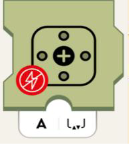
    Olive green programming block with motor symbol. On lower left of symbol is red circle with crossed-out lightning symbol. Bottom white tab has the letter A and a bracket with in and out arrows.Retira a potência do motor e pára lentamente os motores.
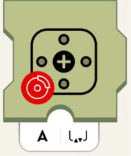
    Olive green programming block with motor symbol. On lower left of symbol is red circle with image of car brake. Bottom white tab has the letter A and a bracket with in and out arrows.Pára o motor.

    Purple circle with purple dial in the middle and little circles all around. Blocos de som e luz roxos

    Os blocos roxos podem reproduzir sons através dos altifalantes do seu dispositivo, mudar a cor das luzes no Move Hub, sensores de cor e de distância. Estes blocos também controlam as luzes da luz LED.

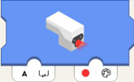
    Blue programming block with sensor light glowing. White tab on the bottom left with the letter A and a bracket with in and out arrows. On the lower right, there's a tab with a red circle next to a painter's pallet.

    Define a cor do sensor LED.
     
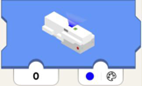
    Blue programming block with hub light glowing. Lower left tab has number 0. Tab on lower right has blue circle with painters pallet.Define o LED do hub para mostrar cor.
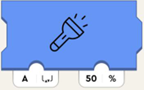
    Blue programming block with flashlight symbol. Bottom left white tab has the letter A and a bracket with in and out arrows. Bottom right tab has number and percent symbol.Define o brilho da luz no dispositivo ligado a uma porta especificada.
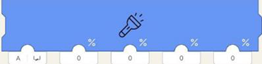
    Long blue programming block with flashlight symbol. First tab on lower left has letter A and brackets with in and out arrows.  4 other tabs have zeros.Define o brilho da luz no dispositivo ligado à porta (parâmetro esquerdo) mas define os quatro semicírculos LED no sensor individualmente.

    Da esquerda para a direita, afetam:
    • Arco superior do "olho" direito
    • Arco superior do "olho" esquerdo
    • Arco inferior do "olho" direito
    • Arco inferior do "olho" esquerdo
    Blue programming block with house symbol. On lower left of symbol is a volume icon. The below tab has number 2.Reproduz o som selecionado a partir da biblioteca de sons da casa.
    Blue programming block with whistle symbol, on lower left of symbol is volume icon. Below tab has number 2. Reproduz o som selecionado a partir da biblioteca de sons do apito.
    Blue programming block with train symbol, on lower left of symbol is volume icon. Below tab has number 2. Reproduz o som selecionado a partir da biblioteca de sons do comboio.
    Blue programming block with car symbol, on lower left of symbol is volume icon. Below tab has number 2. Reproduz o som selecionado a partir da biblioteca de sons do automóvel.
    Blue programming block with airplane symbol, on lower left of symbol is volume icon. Below tab has number 2. Reproduz o som selecionado a partir da biblioteca de sons do avião.
    Blue programming block with dog symbol, on lower left of symbol is volume icon. Below tab has number 2. Reproduz o som selecionado a partir da biblioteca de sons do cão.
    Blue programming block with cat symbol, on lower left of symbol is volume icon. Below tab has number 2. Reproduz o som selecionado a partir da biblioteca de sons do gato.
    Blue programming block with whoopie cushion symbol, on lower left of symbol is volume icon. Below tab has number 2. Reproduz o som selecionado a partir da biblioteca de sons do peido.
    Blue programming block with the horn symbol, on lower left of symbol is volume icon. Below tab has number 2. Reproduz o som selecionado a partir da biblioteca de sons da buzina.
    Blue programming block with hand clapping symbol, on lower left of symbol is volume icon. Below tab has number 2. Reproduz o som selecionado a partir da biblioteca de sons da multidão.
    Blue programming block with robot symbol, on lower left of symbol is volume icon. Below tab has number 2.Reproduz o som selecionado a partir da biblioteca de sons do robô.
    Blue programming block with raygun symbol, on lower left of symbol is volume icon. Below tab has number 2.Reproduz o som selecionado a partir da biblioteca de sons do alvo.

    Teal circle with dark teal joystick inside. Blocos de widgets em azul-petróleo

    Os blocos azul-petróleo permitem-lhe controlar o seu modelo com widgets.

    Green small programming block with nub on top. Has image of button. Tab underneath has number zero.   

    Comunica o estado (verdadeiro/falso ou 0/1) do widget de botão do Widget Canvas com o Channel-ID (1º parâmetro).

    image.png

    Comunica o estado (verdadeiro/falso ou 0/1) do widget de alternância do ecrã do widget com o Channel-ID (1º parâmetro).
    Green small programming block with nub on top. Has image of directional button, with arrows front, back, left, right. Tab underneath has number zero.Comunica o estado do widget multibotão do widget Canvas com o Channel-ID (1º parâmetro), como um eixo. Isto significa: se o botão inferior for premido, reporta -100, se o superior for premido, 100. Se não premir nenhum dos dois, 0.
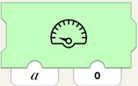
    Green programming block with image of speedometer. Two tabs are on the bottom, the one on the left has letter a, the one on the right has number 0.Instrui o velocímetro do ecrã do widget, o mostrador de números inteiros ou qualquer outro mostrador com Channel-ID (1º parâmetro) a mostrar o valor (2.º parâmetro).
    Green small programming block with nub on top. Has slider icon with hatch marks inside. Tab underneath has number zero.Comunica a posição (- 100 a 100) do controlo deslizante do widget Canvas com o Channel-ID (1º parâmetro).
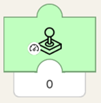
    Green small programming block with nub on top. Has joystick icon on block with image of speedometer in lower lefthand corner. Tab underneath has number zero.Comunica a amplitude (- 100 a 100) do joystick do widget Canvas com o Channel-ID (1º parâmetro).

    Quanto mais longe o joystick for puxado em relação ao centro, maior será o número. Na metade superior do joystick, os números reportados serão positivos. Na metade inferior, negativos.
    Green small programming block with nub on top. Has joystick icon on block with image of steering wheel in lower lefthand corner. Tab underneath has number zero.Informa o ângulo (normalizado para -100 a 100 e não em graus, o que corresponderia a -90 a 90!) do widget de joystick do Widget Canvas com o Channel-ID (1º parâmetro).

    Se o joystick apontar diretamente para cima ou para baixo (independentemente da amplitude), o bloco emite 0. Se o manípulo do joystick for movido no sentido dos ponteiros do relógio, o número torna-se negativo e diminui até atingir -100 diretamente à esquerda ou à direita. Se rodar no sentido contrário ao dos ponteiros do relógio, o número é positivo e aumenta em direção ao 100.


    Se tiver alguma dúvida sobre qualquer um dos blocos acima ou precisar de ajuda com qualquer outra coisa, entre em contacto connosco.