LEGO® MINDSTORMS® EV3:n liittäminen Bluetooth®
Voit käyttää Bluetooth® langattomaan viestintään LEGO® MINDSTORMS® EV3 ohjelmoitavan palikan ja EV3-ohjelmiston välillä! Bluetoothin kantama on lyhyempi kuin Wi-Fin, mutta se kuluttaa vähemmän virtaa, etkä tarvitse langatonta reititintä sen käyttöönottoon.
Voit asentaa Bluetoothin ohjelmoitavaan palikkaasi seuraamalla näitä ohjeita:
- Valitse Bluetooth ohjelmoitavan palikan Asetukset-näytöltä käyttämällä nuolinäppäimiä. Näkyviin tulee ponnahdusikkuna, jossa on luettelo vaihtoehdoista..
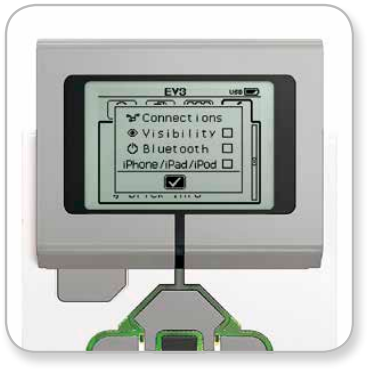
- Käytä ylös- ja alas-näppäimiä navigointiin, korosta "Bluetooth" ja paina sitten keskipainiketta, jolloin Bluetooth-ruutuun ilmestyy valintamerkki. Olet ottanut Bluetoothin käyttöön. Kuvakkeen pitäisi näkyä ohjelmoitavan palikan näytön vasemmassa yläkulmassa.
Jos "iPhone/iPad/iPod" -vaihtoehto on valittuna, et voi muodostaa yhteyttä mihinkään muuhun kuin iOS-laitteeseen, esimerkiksi iPhoneen, iPadiin tai iPod Touchiin. Jätä kaikkien muiden yhteyksien valintaruudut valitsematta.
Ohjelmiston liittäminen ohjelmoitavaan palikkaan
macOS
- Käynnistä LEGO MINDSTORMS EV3 -ohjelmisto ja yhdistä ohjelmoitava palikka Maciin USB-kaapelin avulla..
- Siirry EV3-ohjelmistossa Laitteisto-sivulle ja napsauta kohtaa Päivitä.
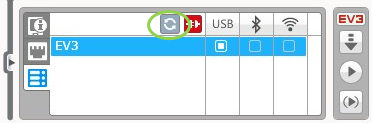
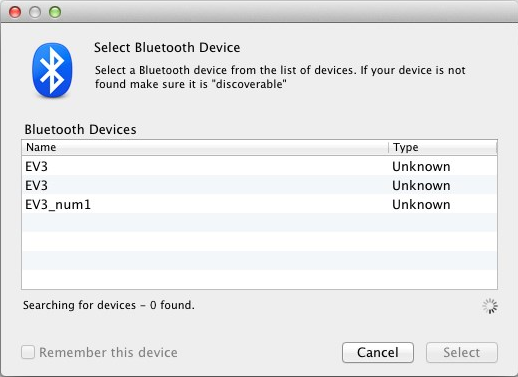
- Näkyviin tulee uusi ikkuna, jossa luetellaan kaikki aiemmin yhdistetyt ja käytettävissä olevat ohjelmoitavat palikat. Saattaa kestää muutaman minuutin ennen kuin ohjelmoitava palikkasi tulee näkyviin. Etsi palikka, johon haluat muodostaa yhteyden, ja valitse se.
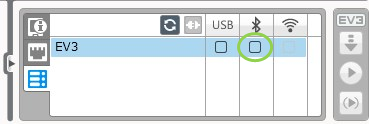
- Bluetooth on nyt käytettävissä yhteystyyppinä. Valitse se napsauttamalla Bluetooth-kuvakkeen alla olevaa painiketta.
- Vahvista yhteys ja salasana ohjelmoitavalla palikallasi.
- Kirjoita salasanaksi "1234" ikkunaan, jossa lukee "Parinliitospyyntö: EV3".
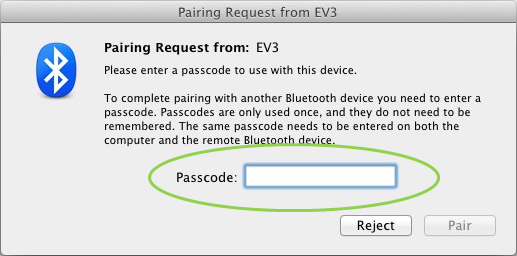
- Ohjelmoitava palikka on nyt yhdistetty Maciin Bluetoothin avulla.
Jos ohjelmoitava palikkasi ei tule näkyviin käytettävissä olevien ohjelmoitavien palikoiden luetteloon, käynnistä ohjelmoitava palikkasi uudelleen ja käy läpi seuraavat vaiheet: - Napsauta Dockissa olevaa Järjestelmäasetukset-kuvaketta .
 ja valitse Bluetooth.
- Valitse "Uuden laitteen määrittäminen" tai "Lisää uusi laite".
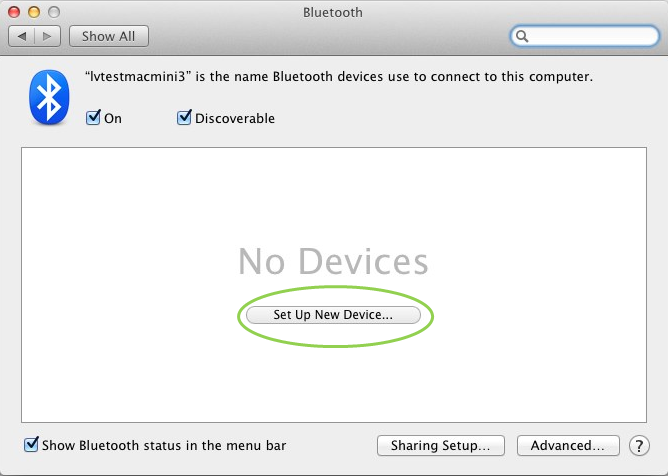
- Bluetooth-asetusavustaja etsii kaikki Bluetooth-yhteydellä käytettävissä olevat laitteet. Saattaa kestää muutaman minuutin ennen kuin ohjelmoitava palikkasi tulee näkyviin. Kun se tulee näkyviin, valitse se ja napsauta kohtaa Jatka.
- Vahvista yhteys ja salasana ohjelmoitavalla palikallasi.
- Tämä ensimmäinen yritys todennäköisesti epäonnistuu, koska Macin oletussalasanaksi on asetettu "0000".
- Napsauta kohtaa Salasana-asetukset.
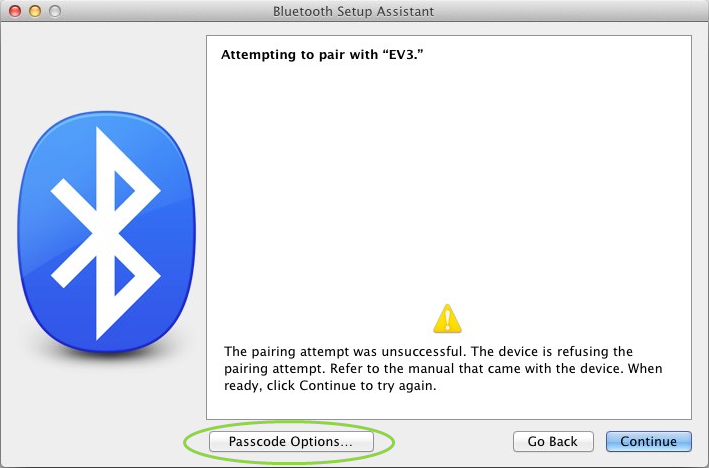
- Valitse kohta Käytä tiettyä salasanaa, kirjoita "1234" ja napsauta sitten OK.
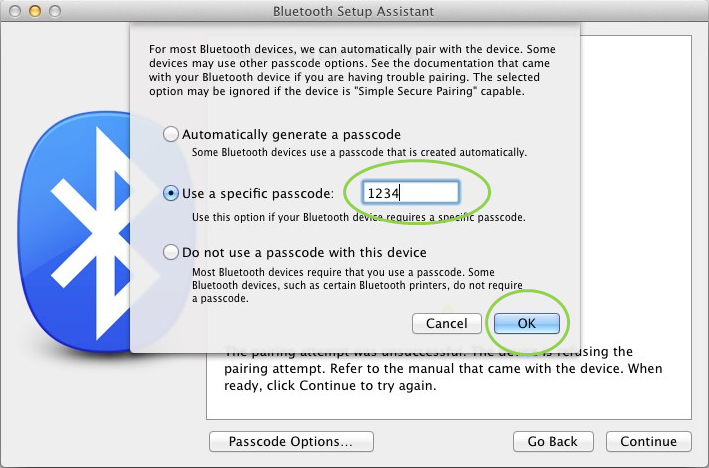
- Vahvista yhteys ja salasana ohjelmoitavalla palikallasi.
- Näet nyt ikkunan, jossa vahvistetaan, että ohjelmoitava palikkasi on pariliitetty onnistuneesti. Napsauta kohtaa Lopeta.
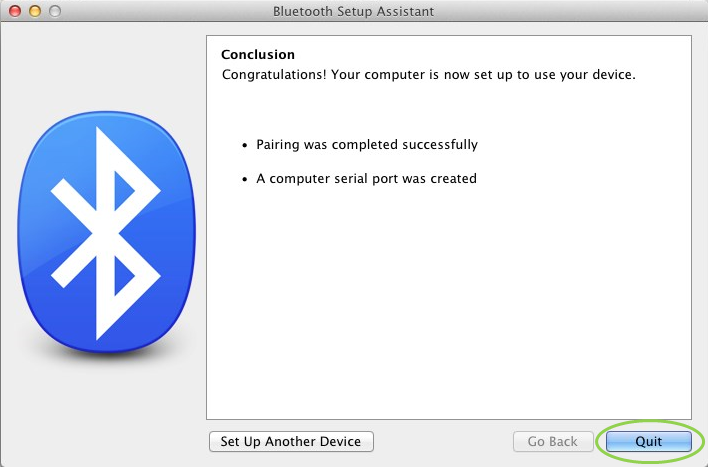
- Ohjelmoitava palikkasi näkyy nyt tunnettujen Bluetooth-laitteiden listassa.
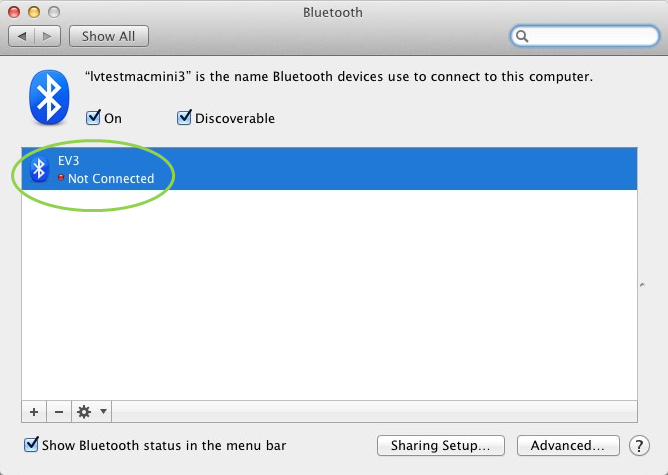
- Toista vaiheet 1–7.
Windows
- Siirry EV3-ohjelmistossa laitteistosivulle ja napsauta kohtaa Päivitä.
- Ohjelmoitava palikkasi on käytettävissä Bluetooth-yhteydellä. Muodosta yhteys napsauttamalla Bluetooth-kuvakkeen alapuolella olevaa painiketta.
- Tietokoneesi muodostaa yhteyden ohjelmoitavaan palikkaasi. Tässä vaiheessa sinun on ehkä vahvistettava yhteys ja salasana "1234" ohjelmoitavalla palikallasi.
Jos et näe ohjelmoitavaa palikkaa sovelluksen Laitteisto-sivulla, jatka käymällä läpi seuraavat vaiheet.
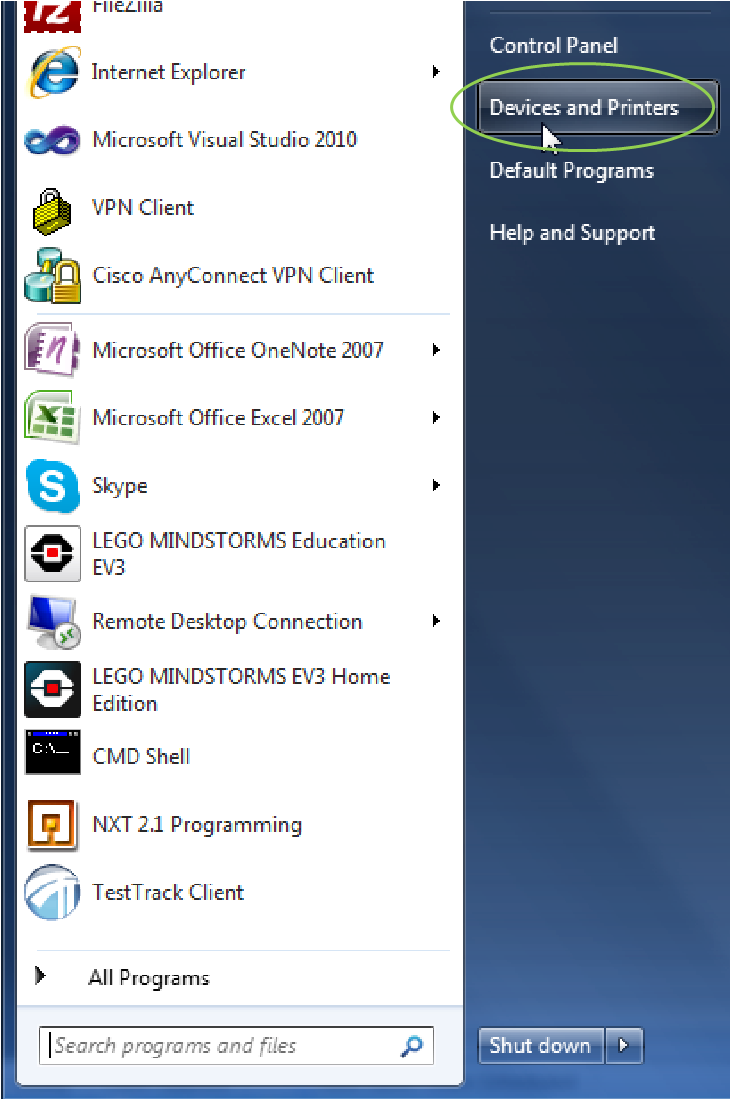
- Avaa Aloitusvalikko ja napsauta kohtaa Laitteet ja tulostimet.
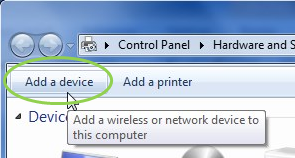
- Napsauta kohtaa Lisää laite.
- Kestää hetken, ennen kuin ohjelmoitava palikkasi näkyy käytettävissä olevien laitteiden luettelossa. Valitse se ja paina kohtaa Seuraava.
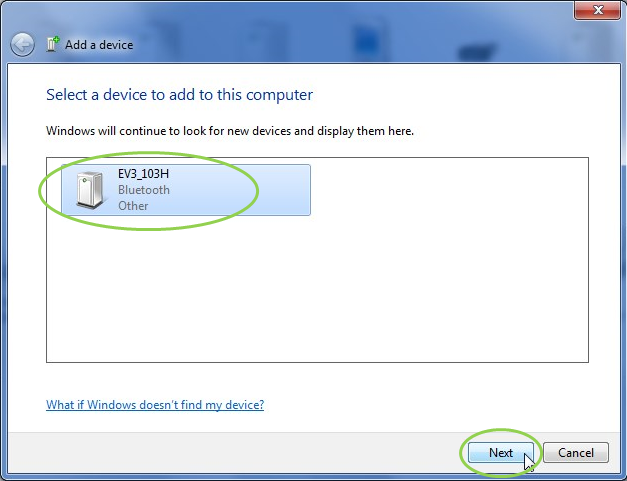
- Tietokone yrittää muodostaa yhteyden ohjelmoitavaan palikkaan.
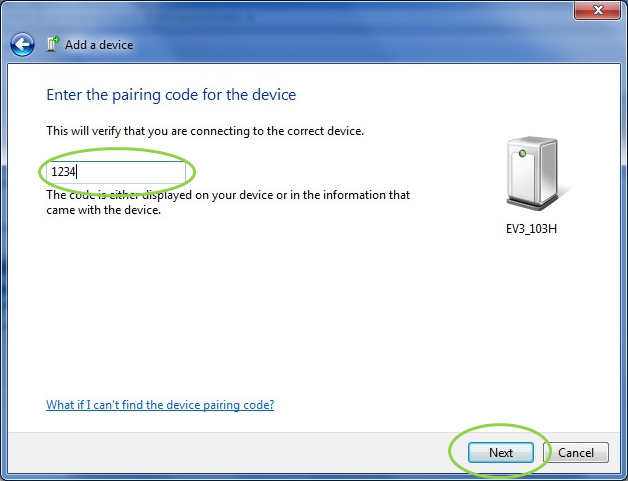
- Vahvista yhteys ja salasana ohjelmoitavalla palikalla.
- Kirjoita tietokoneella "1234" kuten alla ja napsauta kohtaa Seuraava.
- Kun pariliitosprosessi on suoritettu, näkyviin tulee seuraava ikkuna.
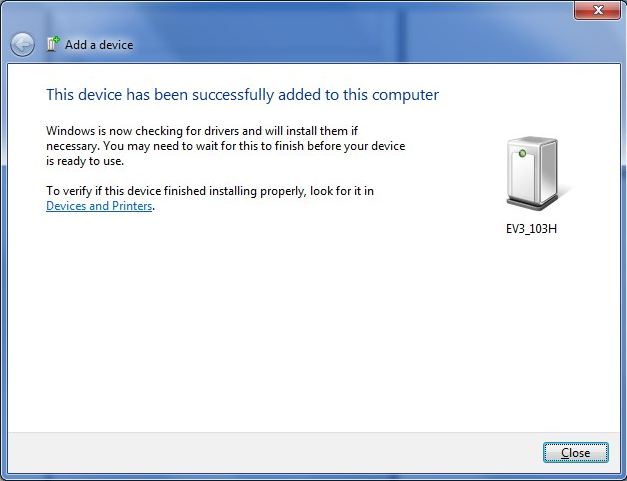
- Toista vaiheet 1–3.
Jos sinulla on ongelmia, ota meihin yhteyttä.