LEGO® MINDSTORMS® EV3 per Bluetooth® verbinden
Über Bluetooth® können Sie drahtlos zwischen dem LEGO® MINDSTORMS® EV3-Stein und der EV3-Software kommunizieren! Bluetooth hat eine geringere Reichweite als Wi-Fi. Es verbraucht aber weniger Strom und es braucht auch kein Router konfiguriert zu werden.
Gehen Sie wie folgt vor, um Bluetooth auf dem EV3-Stein einzuschalten:
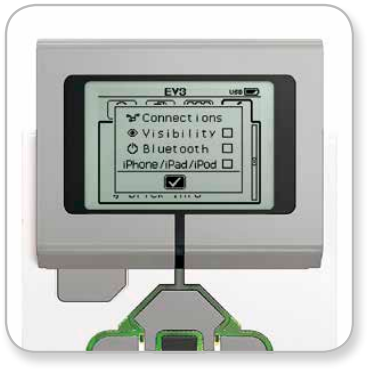
- Verwenden Sie die Pfeiltasten, um auf dem EV3-Stein im Fenster "Einstellungen" Bluetooth auszuwählen. Ein Popup-Fenster mit einer Liste von Optionen erscheint.
- Markieren Sie mithilfe der Oben/Unten-Tasten "Bluetooth" und drücken Sie die mittlere Taste. Ein Häkchen erscheint im Feld "Bluetooth". Sie haben nun Bluetooth aktiviert und sollten ein
 Symbol oben links im Display des EV3-Steins sehen.
Ist die "iPhone/iPad/iPod"-Option aktiviert, können Sie sich nur mit iOS-Geräten, wie iPhone, iPad oder iPod Touch, verbinden. Für andere Verbindungsarten ist diese Einstellung zu deaktivieren.
Um die Software mit dem EV3-Stein zu verbinden:
MacOS
- Starten Sie die LEGO® MINDSTORMS® EV3-Software und verbinden Sie den EV3-Stein über USB-Kabel mit Ihrem Mac.
- Öffnen Sie in der EV3-Software die Seite Hardware und klicken Sie auf "Aktualisieren".

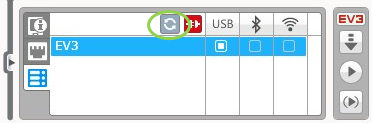
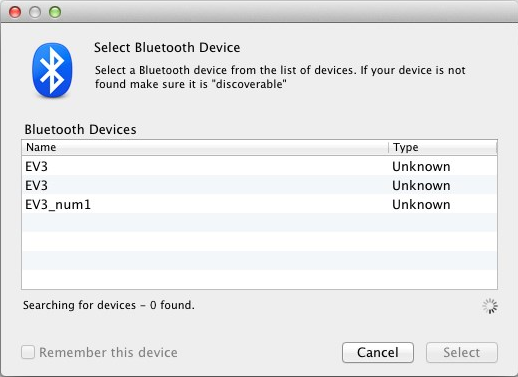
- Ein neues Fenster wird geöffnet und zeigt alle zuvor verbundenen und verfügbaren EV3-Steine an. Es kann ein paar Minuten dauern, bis Ihr EV3-Stein angezeigt wird. Finden Sie den EV3-Stein, zu dem Sie sich verbinden möchten und wählen Sie ihn aus.

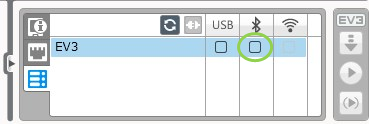
- Bluetooth kann jetzt als Verbindungstyp eingestellt werden. Die Auswahl erfolgt, indem Sie auf die Schaltfläche unterhalb des Bluetooth-Symbols klicken.

- Bestätigen Sie die Verbindung und das Passwort auf dem EV3-Stein.
- Geben Sie "1234" als Passwort im Fenster bei der "Pairing-Anfrage vom: EV3" ein.

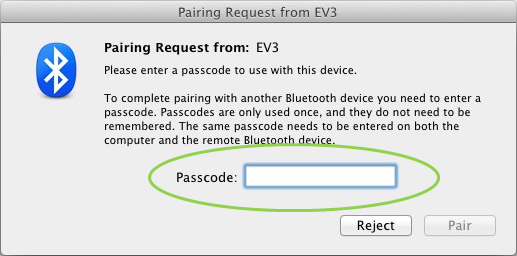
- Der EV3-Stein wird nun per Bluetooth mit Ihrem Mac verbunden.
Wird Ihr EV3-Stein nicht in der Liste der verfügbaren EV3-Steine angezeigt, starten Sie Ihren EV3-Stein neu und fahren Sie mit den folgenden Schritten fort: - Klicken Sie auf das Icon Systemeinstellungen "
 " im Dock und wählen Sie Bluetooth.
- Wählen Sie "Neues Gerät einrichten" oder "Neues Gerät hinzufügen".
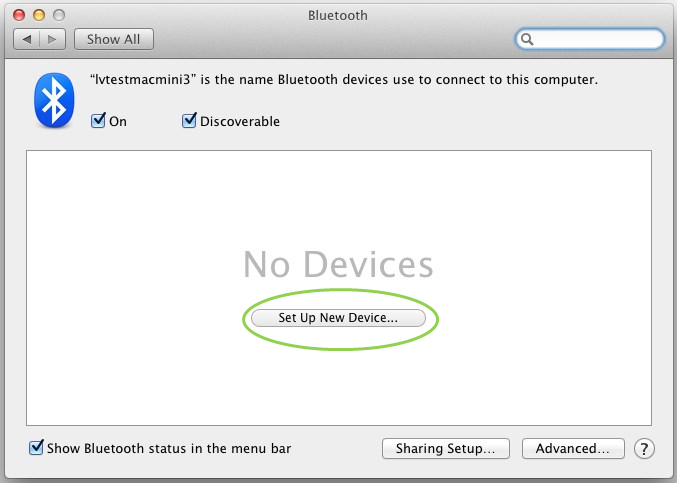
- Der Bluetooth-Setup-Assistent sucht nun nach allen verfügbaren Bluetooth-Geräten. Es kann ein paar Minuten dauern, bis Ihr EV3-Stein angezeigt wird. Nachdem er angezeigt wird, klicken Sie auf "Weiter".
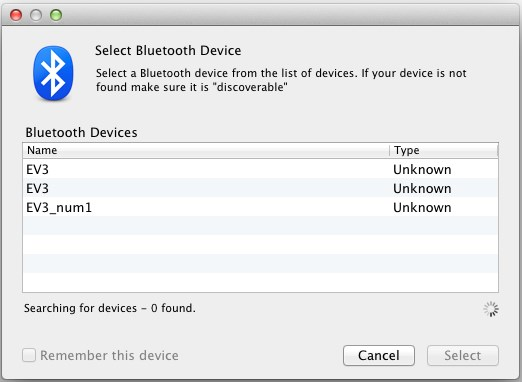
- Bestätigen Sie die Verbindung und das Passwort auf dem EV3-Stein.
- Dieser erste Versuch wird höchstwahrscheinlich fehlschlagen, weil auf dem Mac das Standard-Passwort "0000" eingestellt ist.
- Klicken Sie auf "Passwort-Optionen".
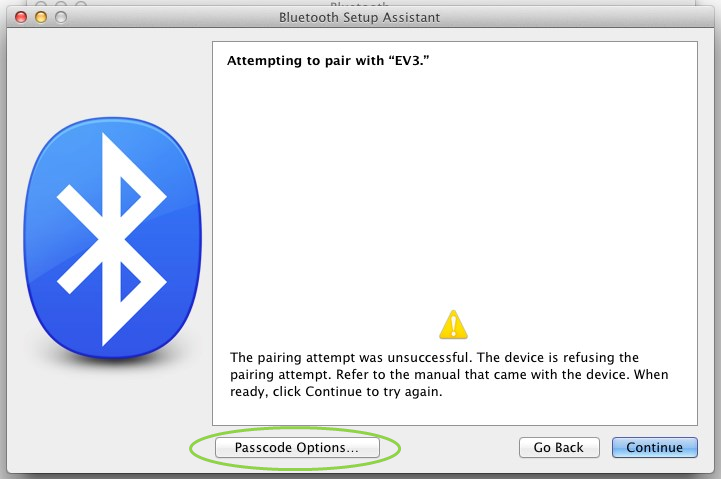
- Wählen Sie "Individuelles Passwort verwenden" und geben Sie "1234" ein. Klicken Sie anschließend auf "OK".
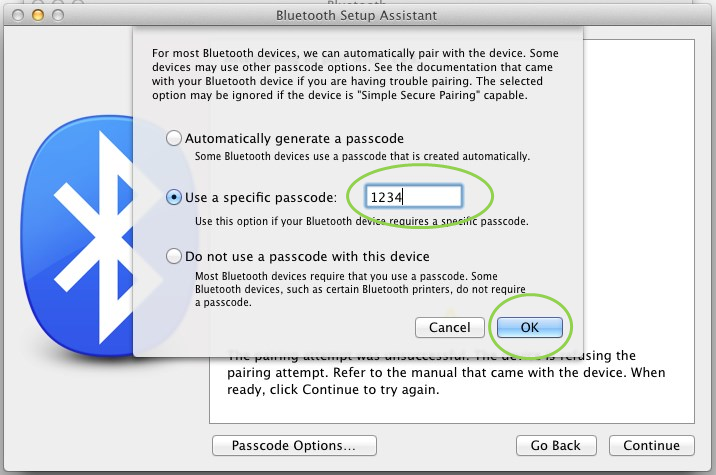
- Bestätigen Sie die Verbindung und das Passwort auf dem EV3-Stein.
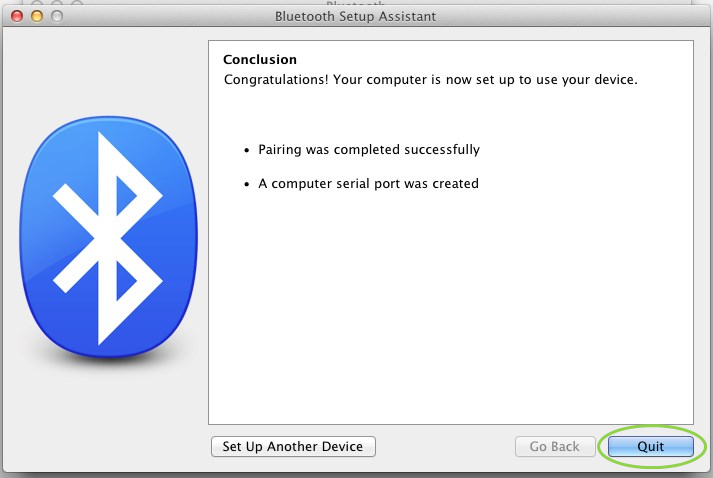
- Jetzt sehen Sie ein Bestätigungsfenster mit der Meldung, dass der EV3-Stein erfolgreich verbunden wurde. Klicken Sie auf "Beenden".
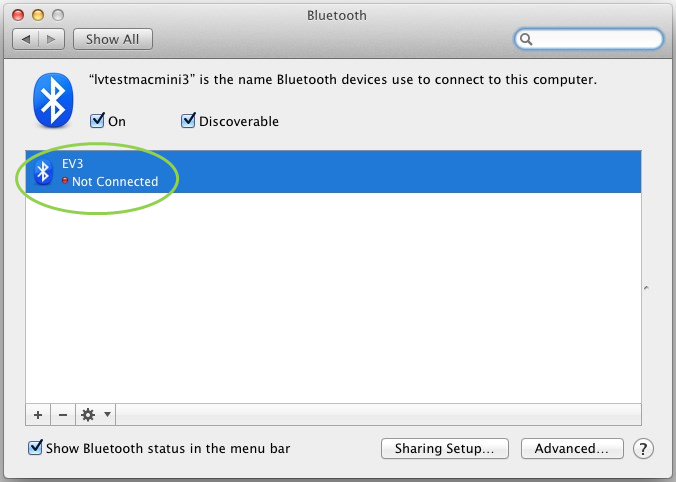
- Der EV3-Stein erscheint jetzt in der Liste der bekannten Bluetooth-Geräte.
- Wiederholen Sie die Schritte 1 bis 7.
Windows
- Öffnen Sie in der EV3-Software die Hardware-Seite und klicken Sie auf "Aktualisieren".
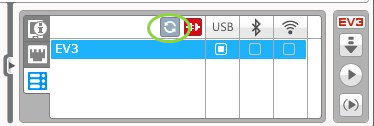
- Der EV3-Stein ist als Bluetooth-Gerät verfügbar. Klicken Sie auf die Schaltfläche unterhalb des Bluetooth-Symbols, um die Verbindung herzustellen.
- Ihr Computer verbindet sich mit dem EV3-Stein. Sie müssen zu diesem Zeitpunkt möglicherweise die Verbindung und das Passwort "1234" auf dem EV3-Stein bestätigen.
Wenn der EV3-Stein nicht auf der Hardware-Seite der Anwendung angezeigt wird, fahren Sie mit den folgenden Schritten fort.
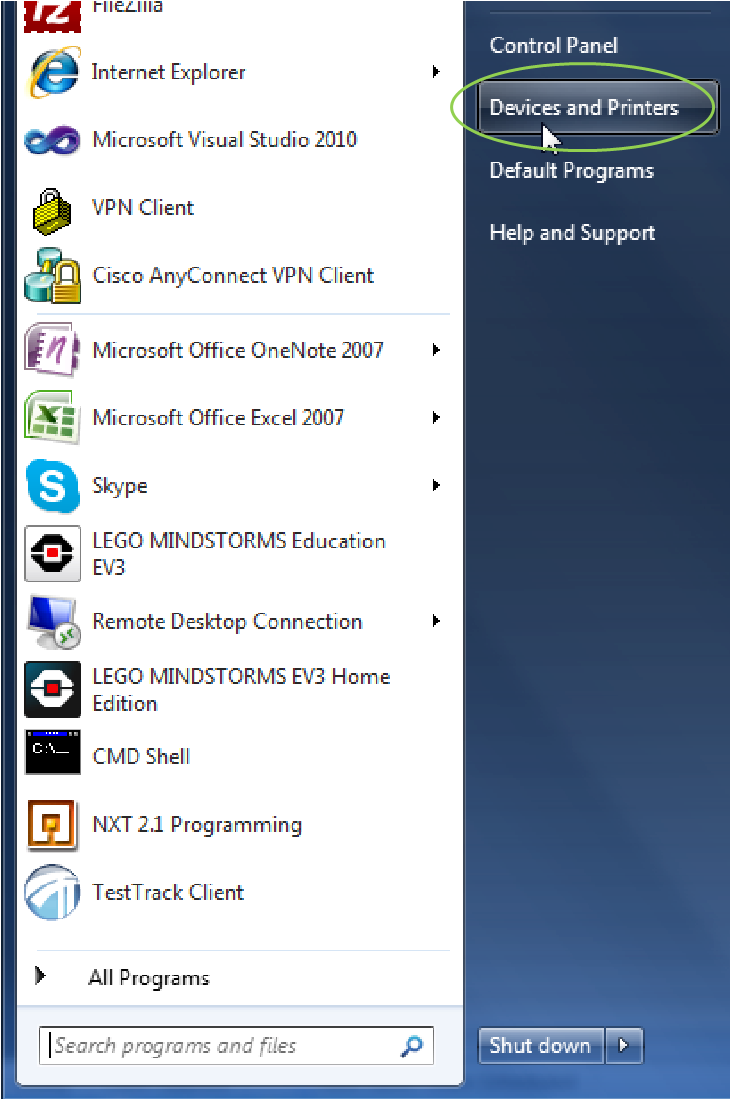
- Öffnen Sie das Startmenü und klicken Sie auf "Geräte und Drucker".
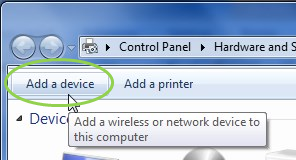
- Klicken Sie auf "Gerät hinzufügen".
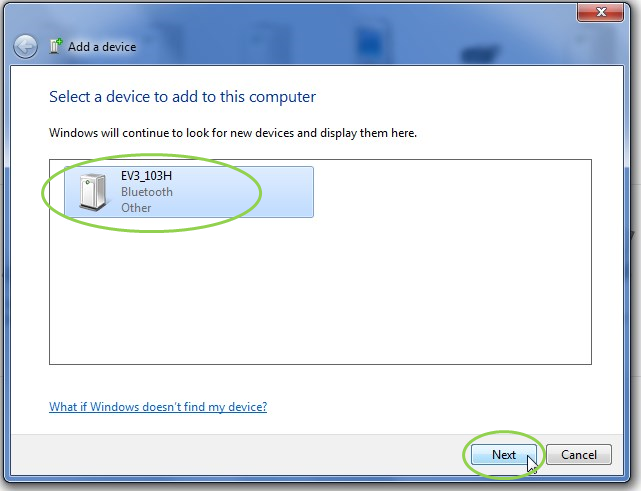
- Es dauert einen Augenblick, bis der EV3-Stein in der Liste der verfügbaren Geräte angezeigt wird. Wählen Sie ihn aus und drücken Sie "Weiter".
- Der PC versucht nun, sich mit dem EV3-Stein zu verbinden.
- Bestätigen Sie Verbindung und Passwort auf dem EV3-Stein.
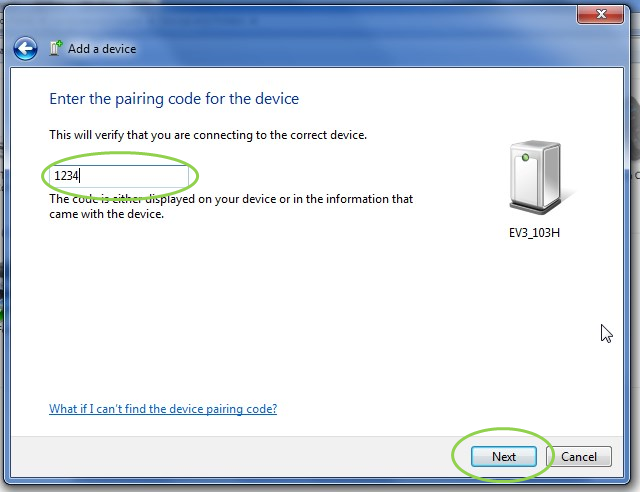
- Geben Sie auf dem PC "1234" ein und klicken Sie auf "Weiter".
- Wenn der Pairing-Prozess abgeschlossen ist, erscheint das folgende Fenster.
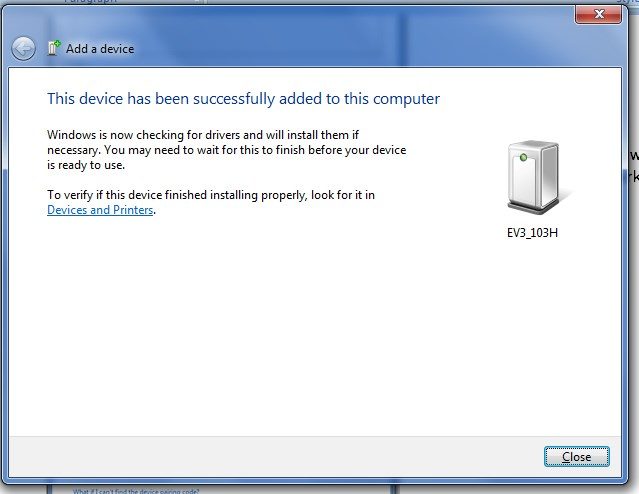
- Wiederholen Sie die Schritte 1 bis 3.
Bei Problemen können Sie sich gern mit uns in Verbindung setzen.