LEGO® MINDSTORMS® EV3 troubleshooting help
You’ll find troubleshooting help for the retired MINDSTORMS® EV3 here!
EV3 downloads
The classroom version of the LEGO® MINDSTORMS® EV3 app will be available to download on the LEGO Education website until July 2026. The home edition is no longer available.
P-brick won’t turn on
If your P-brick won’t turn on, try adjusting the springs in the battery compartment:
-
Remove all the batteries and check the springs, especially the one in the lower right-hand corner.
-
Carefully straighten any bent springs.
-
If you're using the Rechargeable DC Battery, make sure the battery tabs line up with the grooves on the right before clicking into place. For AA batteries, make sure the positive and negative ends are in the correct position.
-
Press the ‘ON’ button to start up the brick.
Make sure to use only 1.5V AA alkaline batteries or a LEGO MINDSTORMS EV3 Rechargeable DC Battery.
How to do a firmware update
Updating firmware will delete all existing files and projects in the EV3 Brick’s memory.
Option 1: Update using the Online EV3 Device Manager
-
Go to the EV3 Device Manager.
-
Download and install the EV3 Device Manager.
-
Connect your EV3 Brick via a USB cable.
-
Check your firmware version and update if needed.
Option 2: Update using the LEGO® MINDSTORMS® Education EV3 Lab software
To perform this update, you’ll need to download the EV3 Lab software from LEGO Education.
- Open EV3 Lab/EV3 Programming.
- Connect your EV3 Brick to your device via a USB cable.
- The application will automatically check for a firmware update.
- If a firmware update is available, click ‘Update Firmware’ to start the update process.
- Your EV3 Brick will restart automatically when the update is complete.
Brick reset and forced firmware update
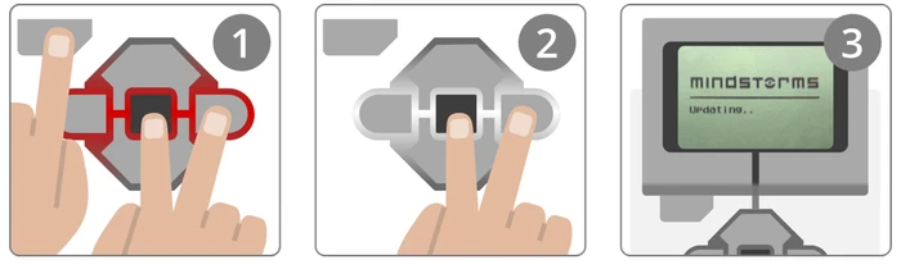
If something goes wrong during the update you can reset your EV3 P-brick and force a firmware update.
-
Hold down the back, center and right buttons on the EV3 P-brick.
-
When the EV3 P-brick restarts, release the back button.
-
Release the center and right buttons when the screen says ‘Updating…’.
Once your EV3 P-brick has been reset, you should be able to update it using the EV3 Manager or the LEGO MINDSTORMS Education EV3 Lab/EV3 Programming software.
Testing an EV3 sensor
Follow these steps to test the sensor:
-
Turn on the EV3 Intelligent Brick and connect to your computer via USB.
-
Connect the sensor to an Input port (1, 2, 3 or 4). If the sensor isn’t detected, try another port. If it appears, there may be a problem with the first port.
-
Open the EV3 software and start a new project.
-
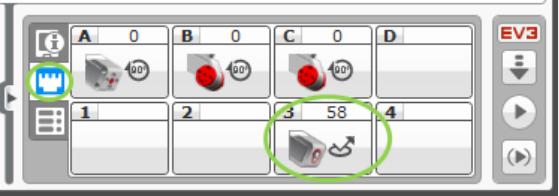
Click on the 'Port View' where you should see your connected sensor.
-
Test the sensor by interacting with it. For example, push down on a touch sensor or expose your light sensor to different levels of light. You’ll know your sensor is working when the values change.
|
Not pushed |
Pushed |
|
|
|
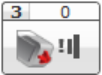

If the sensor doesn't react, it might be the sensor or the cable. Try swapping out the cable to identify the problem.
Testing an EV3 motor
Make sure the MINDSTORMS EV3 Lab software is installed:
-
Click on the link below that matches your motor and save the test program on your computer:
-
Turn on your EV3 Intelligent Brick and connect it to your computer via USB cable.
-
Connect your motor to one of the output ports (A, B, C or D).
-
Double-click on the downloaded file. This will open the MINDSTORMS EV3 software and launch the test program.
-
Once in the EV3 software, click the green 'Play' button. The motor should move back and forth. If it’s not working, try a different port.
You can continue testing other motors and ports by repeating steps 3 to 5 trying different ports and cables.
Building Instructions
Find digital building instructions for the home version on LEGO.com/service and for the education version on education.LEGO.com (downloadable PDFs).