Tilslutning af din LEGO® MINDSTORMS® EV3 til Bluetooth®
Du kan bruge Bluetooth® til at kommunikere trådløst mellem LEGO® MINDSTORMS® EV3 P-klodsen og EV3 -softwaren! Bluetooth har en kortere rækkevidde end Wi-Fi, men bruger mindre strøm, og du behøver ikke en trådløs router for at sætte den op.
Følg disse trin for at konfigurere Bluetooth på din P-klods:
- Brug piletasterne til at vælge Bluetooth under "Indstillinger" på P-klodsen. Der vises en pop-up med en liste over muligheder.
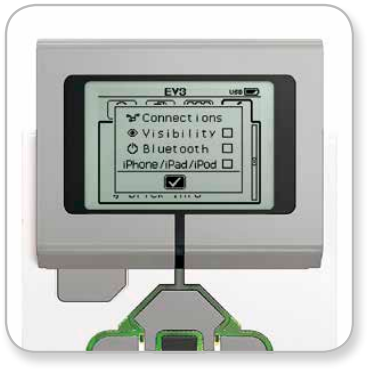
- Brug op- og ned-knapperne til navigation, fremhæv "Bluetooth", tryk derefter på midterknappen, hvorefter der vises et flueben i Bluetooth-boksen. Du har aktiveret Bluetooth, og burde se et
 ikon øverst til venstre på P-klods-skærmen.
Hvis indstillingen "iPhone/iPad/iPod" er markeret, vil du ikke være i stand til at oprette forbindelse til andet end en iOS-enhed som en iPhone, iPad eller iPod Touch. Fjern denne markering for alle andre forbindelser.
Forbind din software til din P-klods
macOS
- Start LEGO® MINDSTORMS® EV3-softwaren, og tilslut din P-klods til din Mac ved hjælp af USB-kabel.
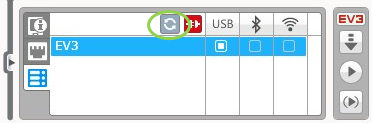
- I EV3-softwaren skal du gå til Hardwaresiden og klikke på Opdater.
-
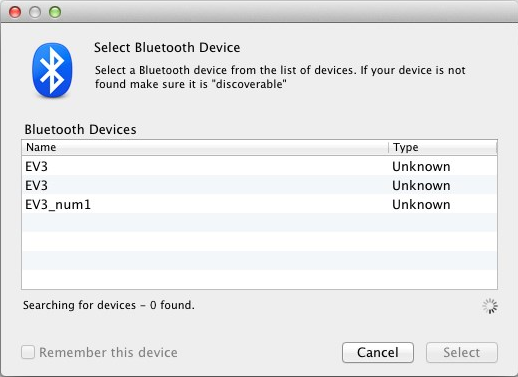
Et nyt vindue vil dukke op og vise dig alle tidligere forbundne P-klodser. Det kan tage et par minutter før din P-klods viser sig. Vælg den, du gerne vil forbinde til.
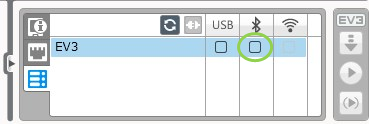
- Bluetooth vil nu vise sig som en forbindelsestype. Vælg det ved at klikke på knappen under Bluetooth-ikonet.
- Bekræft forbindelsen og adgangskoden på din P-klods.
- Indtast "1234", som adgangskoden i vinduet "Pairing Request from: EV3".
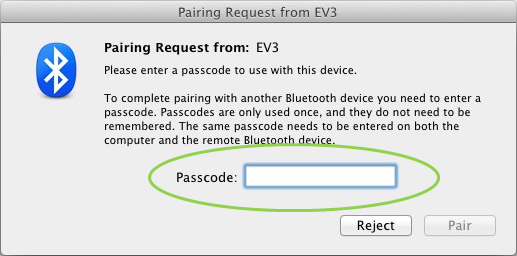
- P-klodsen vil nu blive forbundet til din Mac ved hjælp af Bluetooth.
-
Klik på ikonet Systemindstillinger i Dock'en
 , og vælg Bluetooth.

- Vælg "Konfigurer ny enhed" eller "Tilføj ny enhed".
- Bluetooth Setup Assistenten vil søge efter alle enheder, der er tilgængelige via Bluetooth. Det kan tage et par minutter, før din P-klods vises. Når det sker skal du vælge den og klikke på "Fortsæt".
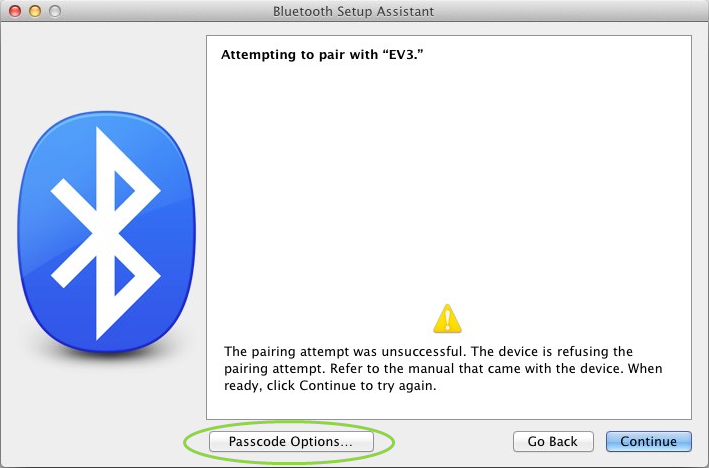
- Bekræft forbindelsen og adgangskoden på din P-klods.
- Dette første forsøg vil højst sandsynligt mislykkes, fordi Mac'ens standardadgangskode er sat til "0000".
- Klik på "Adgangskodeindstillinger".
- Vælg "Brug en specifik adgangskode" og indtast "1234", og klik derefter på "OK".
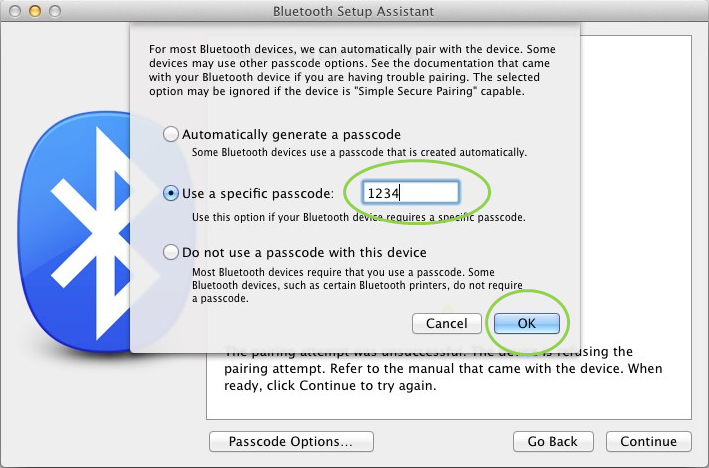
- Bekræft forbindelsen og adgangskoden på din P-klods.
- Du vil nu se et vindue der bekræfter, at din P-klods er blevet parret. Klik på "Afslut".
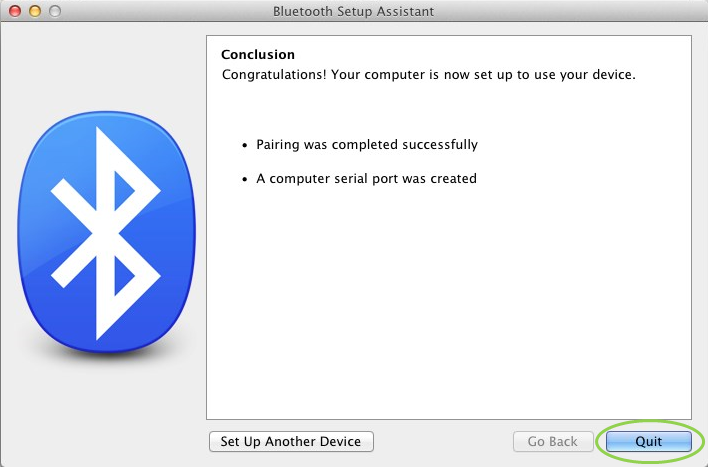
17. Din P-klods vises nu på listen over kendte Bluetooth-enheder.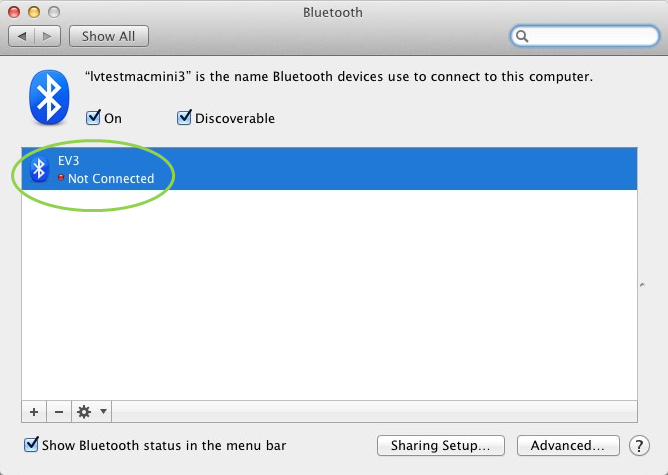
18. Gentag trin 1-7.
Windows
- I EV3-softwaren skal du gå til Hardwaresiden og klikke på Opdater.
- Din P-klods vil være tilgængelig via Bluetooth. Klik på knappen under Bluetooth-ikonet for at oprette forbindelse.
- Din computer vil oprette forbindelse til din P-klods. Du skal muligvis bekræfte forbindelsen og adgangskoden"1234" på din P-klods på dette trin.
Hvis du ikke kan se P-klodsen på hardwaresiden i applikationen skal du fortsætte med følgende trin.
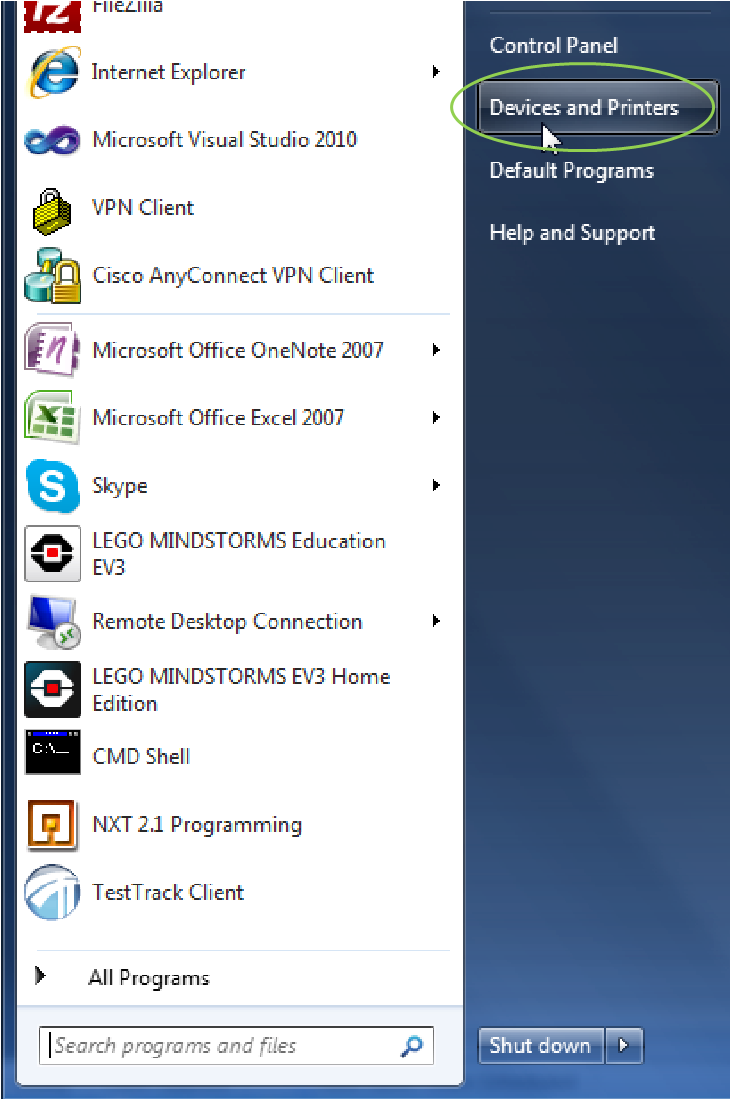
- Åbn startmenuen og klik på "Enheder og printere".
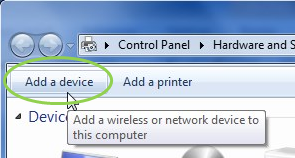
- Klik på "Tilføj en enhed".
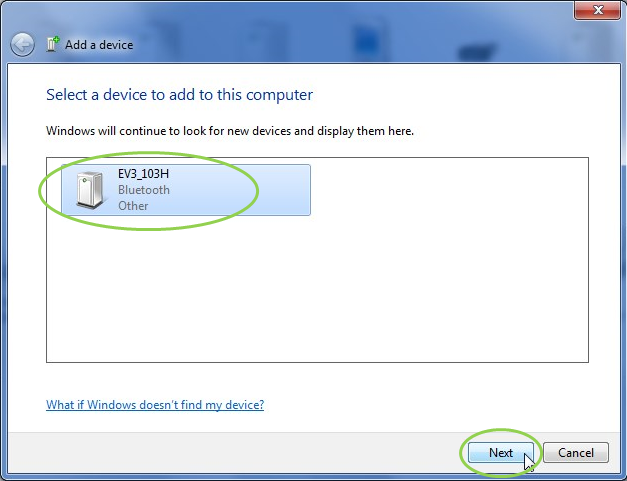
- Det vil tage et øjeblik for din P-klods at dukke op på listen over tilgængelige enheder. Vælg den og tryk på "Næste".
- PC'en vil forsøge at oprette forbindelse til P-klodsen.
- Bekræft forbindelse og adgangskode på P-klodsen.
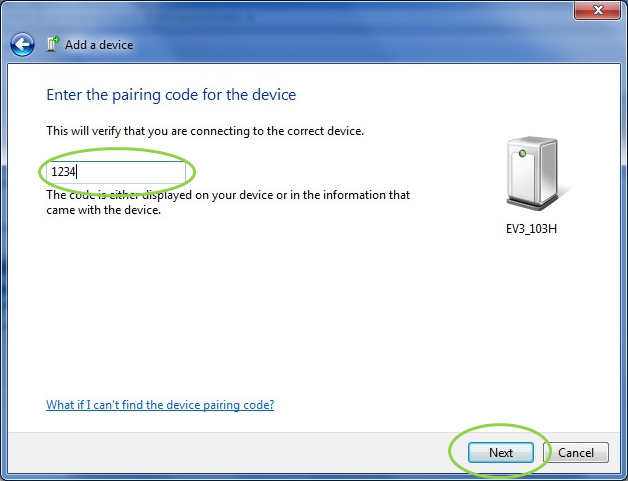
- På PC'en skal du indtaste "1234" som nedenfor og klikke på "Næste".
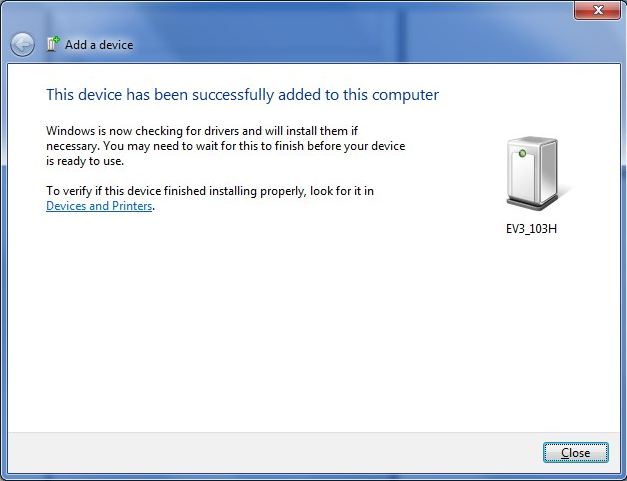
- Når parringsprocessen er færdig, vil følgende vindue dukke op.
- Gentag trin 1-3.
Hvis du har problemer, så skal du endelig bare kontakte os. Vi er klar til at hjælpe!