Cómo conectar tu LEGO® MINDSTORMS® EV3 con Bluetooth
Puedes usar Bluetooth® para comunicarte de forma inalámbrica entre el ladrillo programable LEGO® MINDSTORMS® EV3 y el software EV3. El Bluetooth tiene un alcance menor que la Wi-Fi, pero utiliza menos energía y no necesitas un router inalámbrico para configurarlo.
Sigue estos pasos para configurar el Bluetooth en tu ladrillo programable:
- Utiliza la flecha para elegir Bluetooth en la pantalla de «Configuración» del ladrillo programable. Aparecerá una ventana emergente con una lista de opciones.
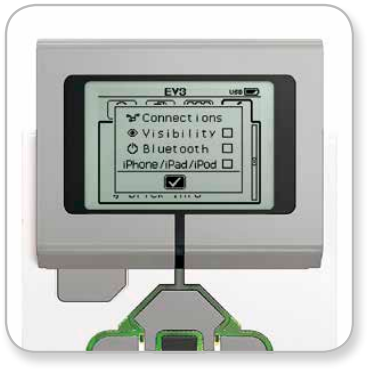
- Ahora, desplázate con los botones de dirección, selecciona «Bluetooth», luego pulsa el botón central y aparecerá una marca de verificación en la casilla de Bluetooth. Has activado el Bluetooth y deberías ver un icono en la parte superior izquierda de la pantalla del ladrillo programable.
Si la opción «iPhone/iPad/iPod» está marcada, no podrás conectarte a nada que no sea un dispositivo iOS como un iPhone, iPad o iPod Touch. Para todas las demás conexiones, mantén esta opción sin marcar.
Para conectar tu software a tu ladrillo programable
macOS
- Inicia el software LEGO MINDSTORMS EV3 y conecta tu ladrillo programable a tu Mac mediante el cable USB.
- En el software EV3, dirígete a la página de hardware y haz clic en «Actualizar».
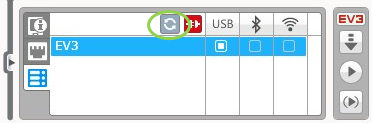
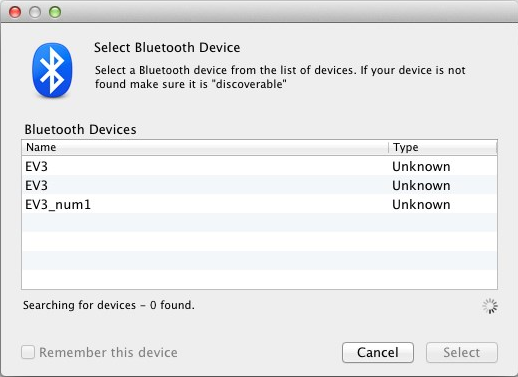
- Aparecerá una nueva ventana con una lista de todos los ladrillos programables previamente conectados y disponibles. Puede que pasen unos minutos hasta que aparezca tu ladrillo programable. Busca el que quieras conectar y selecciónalo.
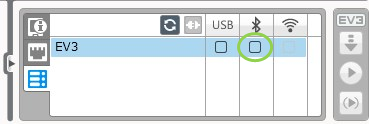
- El Bluetooth estará ahora disponible como tipo de conexión. Selecciónalo haciendo clic en el botón que hay debajo del icono de Bluetooth.
- Confirma la conexión y la contraseña en tu ladrillo programable.
- Introduce «1234» como código de acceso en la ventana «Solicitud de emparejamiento de: EV3».
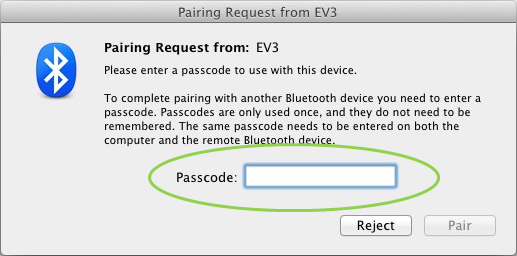
- El ladrillo programable estará ahora conectada a tu Mac mediante Bluetooth.
Si tu ladrillo programable no aparece en la lista de ladrillos programables disponibles, reinicia tu ladrillo programable y continúa con los siguientes pasos: - Haz clic en el icono de preferencias del sistema
 en el Dock y elige Bluetooth.
- Elige «Configurar nuevo dispositivo» o «Añadir nuevo dispositivo».
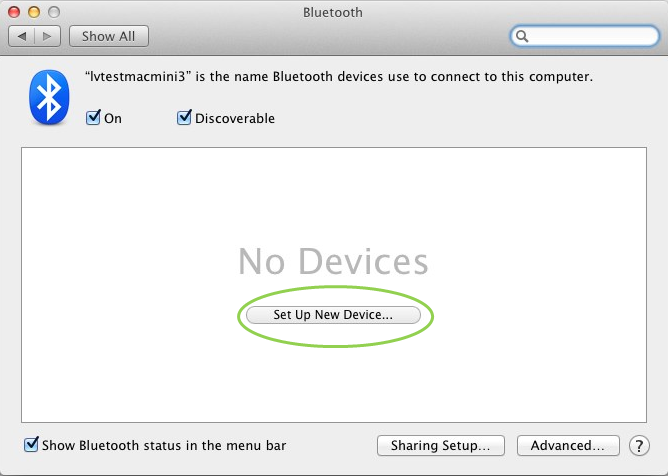
- El asistente de configuración de Bluetooth buscará todos los dispositivos disponibles a través de Bluetooth. Puede que pasen unos minutos hasta que aparezca tu ladrillo programable. Cuando lo haga, selecciónalo y haz clic en «Continuar».
- Confirma la conexión y la contraseña en tu ladrillo programable.
- Lo más probable es que este primer intento falle porque el código de acceso por defecto del Mac está configurado como «0000».
- Haz clic en «Opciones de código de acceso».
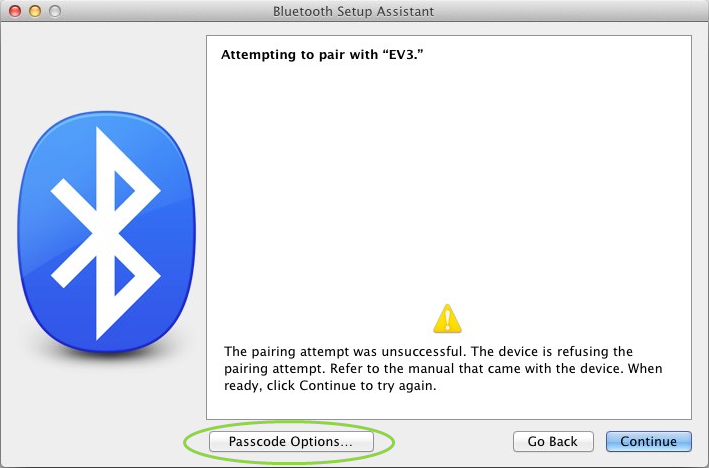
- Elige «Usar un código de acceso específico» e introduce «1234», luego haz clic en «Aceptar».
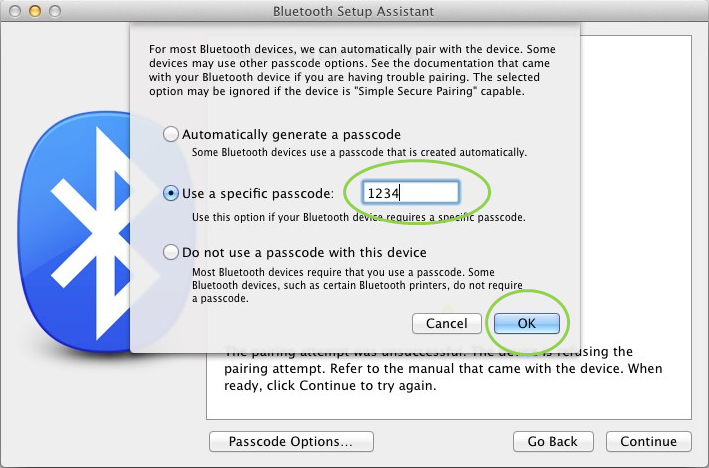
- Confirma la conexión y la contraseña en tu ladrillo programable.
- Ahora verás una ventana que confirma que tu ladrillo programable se ha emparejado correctamente. Haz clic en «Salir».
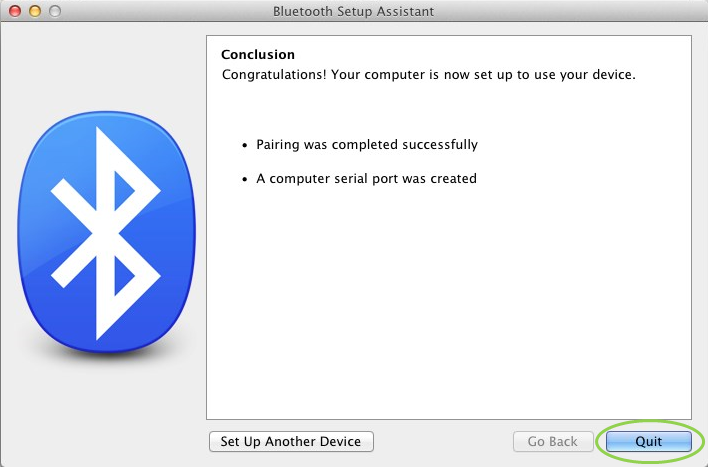
- Tu ladrillo programable aparecerá ahora en la lista de dispositivos Bluetooth conocidos.
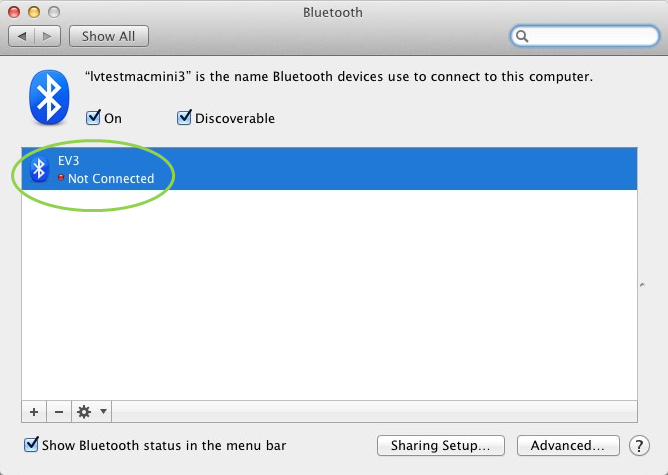
- Repite los pasos 1-7.
Windows
- En el software EV3, dirígete a la sección de hardware y haz clic en «Actualizar».
- Tu ladrillo programable estará disponible a través de Bluetooth. Haz clic en el botón situado debajo del icono de Bluetooth para conectarte.
- Tu ordenador se conectará a tu ladrillo programable. Es posible que en este momento tengas que confirmar la conexión y la contraseña «1234» de tu ladrillo programable.
Si no puedes ver el ladrillo programable en la sección de hardware de la app, continúa con los siguientes pasos.
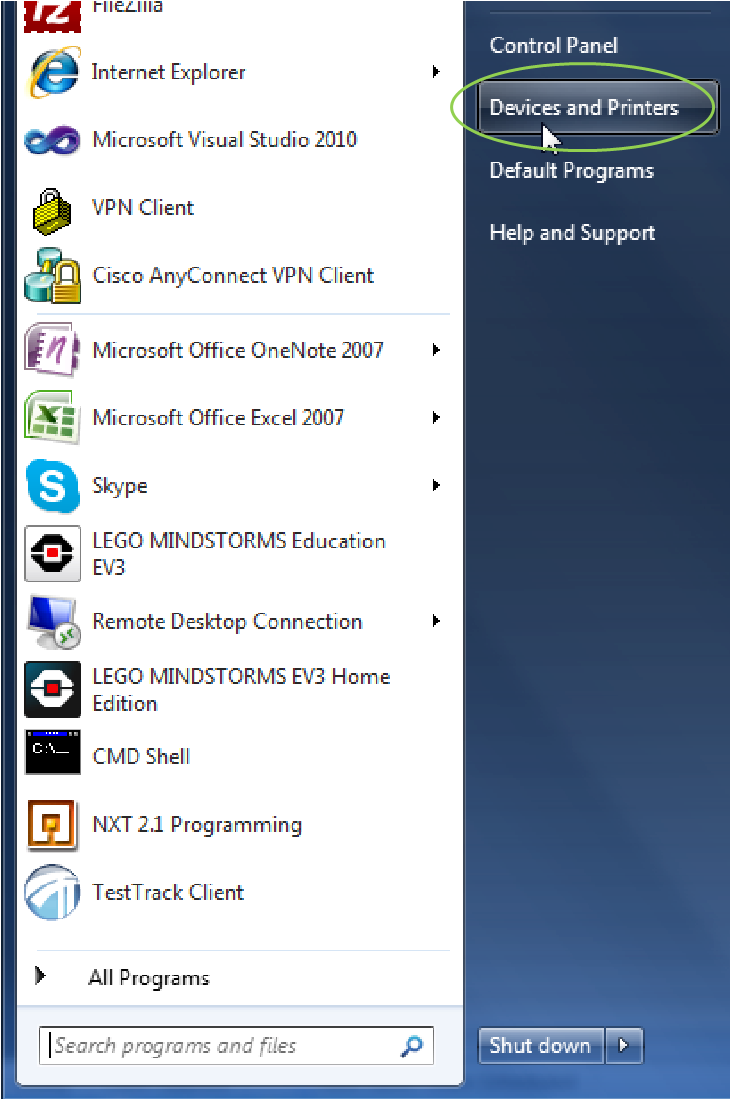
- Abre el menú de inicio y haz clic en «Dispositivos e Impresoras».
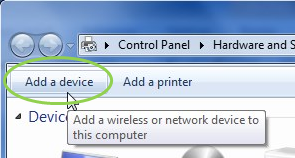
- Haz clic en «Añadir un dispositivo».
- Tu ladrillo programable tardará un momento en aparecer en la lista de dispositivos disponibles. Selecciónalo y haz clic en «Siguiente».
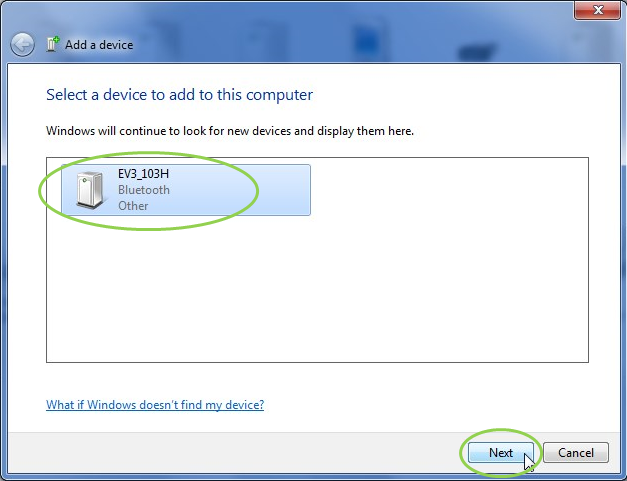
- El PC intentará conectarse al ladrillo programable.
- Confirma la conexión y la contraseña en el ladrillo programable
- En el PC, introduce «1234» como se indica a continuación y haz clic en «Siguiente».
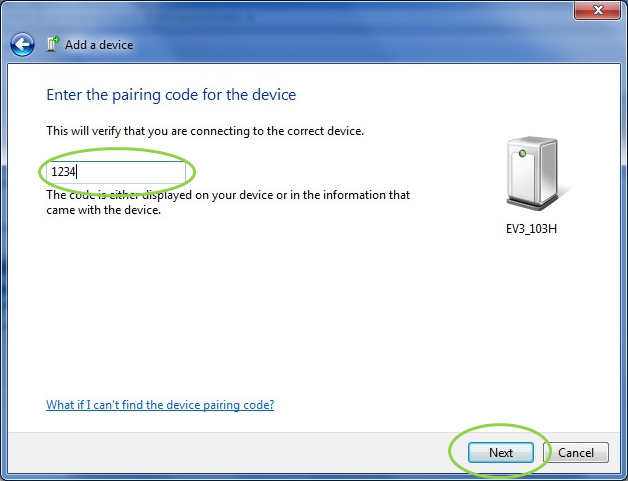
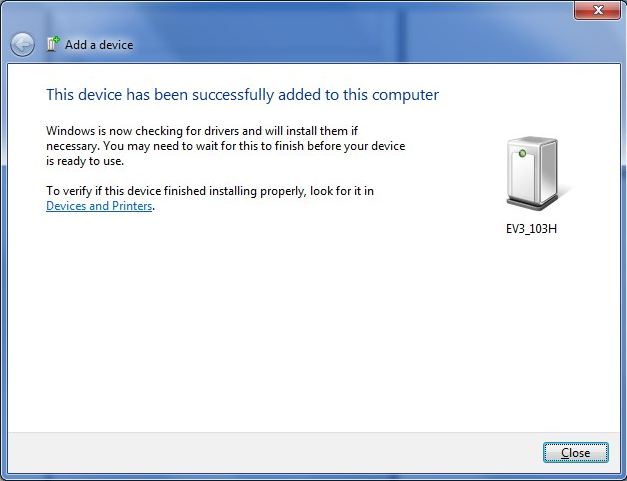
- Cuando el proceso de emparejamiento haya terminado, aparecerá la siguiente ventana.
- Repite los pasos 1-3.
Si tienes algún problema, ponte en contacto con nosotros.