Collegare il tuo mattoncino intelligente LEGO® MINDSTORMS® EV3 via Bluetooth®
È possibile utilizzare Bluetooth® per comunicare in modalità wireless tra il mattoncino intelligente LEGO® MINDSTORMS® EV3 ed EV3 Software! Il Bluetooth ha una portata inferiore rispetto al Wi-Fi, ma consuma meno energia e non è necessario un router wireless per configurarlo.
Segui questi passaggi per configurare il Bluetooth sul tuo mattoncino EV3:
- Utilizzare i pulsanti freccia per scegliere Bluetooth nella schermata "Settings" (Impostazioni) sul mattoncino EV3. Apparirà un pop-up con un elenco di opzioni.
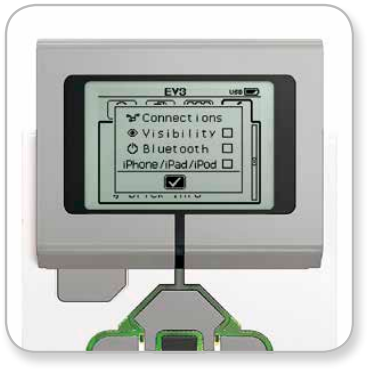
- Utilizzando i pulsanti su e giù per la navigazione, evidenziare "Bluetooth", quindi premere il tasto centrale e comparirà un segno di spunta nella casella Bluetooth. Hai attivato il Bluetooth e dovresti vedere un'icona
 nell'angolo in alto a sinistra del display sul mattoncino intelligente EV3.
Se l'opzione 'iPhone / iPad / iPod' è selezionata, non potrai collegarti a nulla tranne un dispositivo iOS come un iPhone, iPad o iPod Touch. Per tutte le altre connessioni, tieni questa casella deselezionata.
Per connettere il tuo software al tuo mattoncino EV3
macOS
- Avvia il software LEGO® MINDSTORMS® EV3 e collega il tuo mattoncino intelligente EV3 al tuo Mac usando il cavo USB.
- Nel software EV3 sul tuo Mac, accedi alla pagina Hardware e cliccare su “Refresh” (Aggiorna).
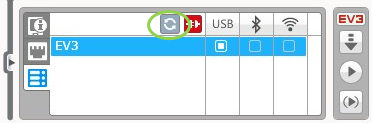
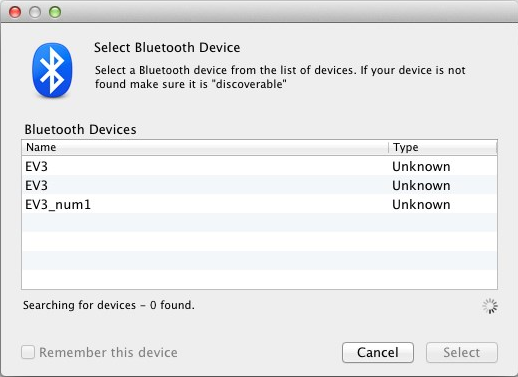
- Apparirà una nuova finestra ed elenca tutti i mattoncini EV3 precedentemente connessi e disponibili. Potrebbero essere necessari alcuni minuti prima che venga visualizzato il mattoncino. Trova quello a cui vuoi connetterti e selezionalo.
- Il Bluetooth sarà ora disponibile come tipo di connessione. Selezionalo facendo clic sul pulsante sotto l'icona Bluetooth.
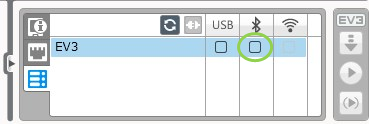
- Confermare la connessione e la password sul tuo mattoncino.
- Inserire "1234" come password nella finestra 'Pairing Request from: EV3' (Richiesta di accoppiamento da: EV3).
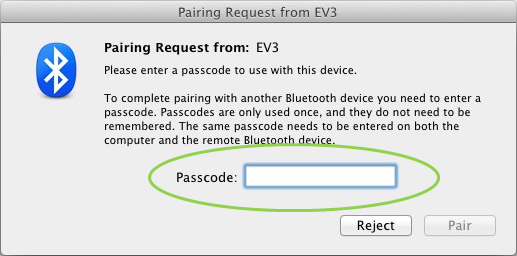
- Il mattoncino sarà ora collegato al tuo Mac tramite Bluetooth.
Se il tuo mattoncino intelligente EV3 non compare nell'elenco dei mattoncini disponibili, riavvia il tuo mattoncino e continua con i seguenti passaggi: - Clicca sull'icona ‘Preferenze di Sistema’
 nel Dock del tuo Mac e selezionare Bluetooth.
- Scegli “Set Up New Device” (Configura nuovo dispositivo) o “Add new Device" (Aggiungi nuovo dispositivo).
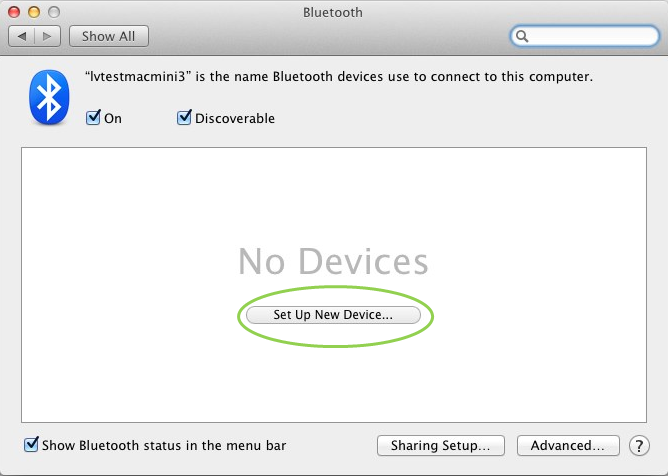
- L'Assistente di configurazione Bluetooth cercherà tutti i dispositivi disponibili tramite Bluetooth. Potrebbero essere necessari alcuni minuti prima che venga visualizzato mattoncino. Quando lo è, sceglilo e clicca su "Continua".
- Confermare la connessione e la password sul tuo mattoncino EV3.
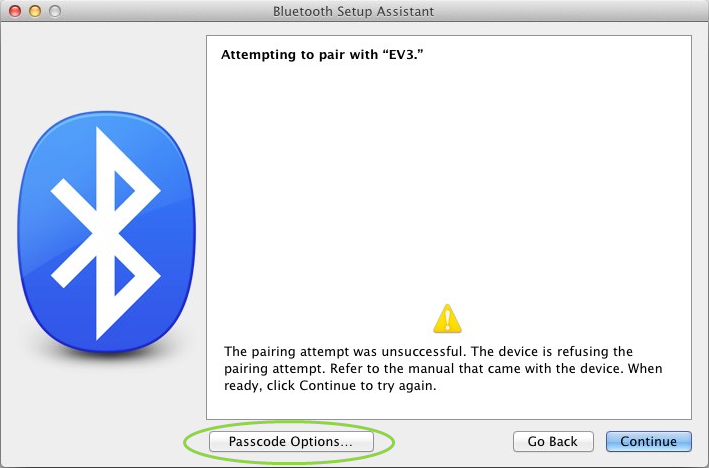
- Questo primo tentativo molto probabilmente fallirà perché il codice di accesso predefinito del Mac è impostato su "0000".
- Fare clic su “Passcode Options” (Opzioni password).
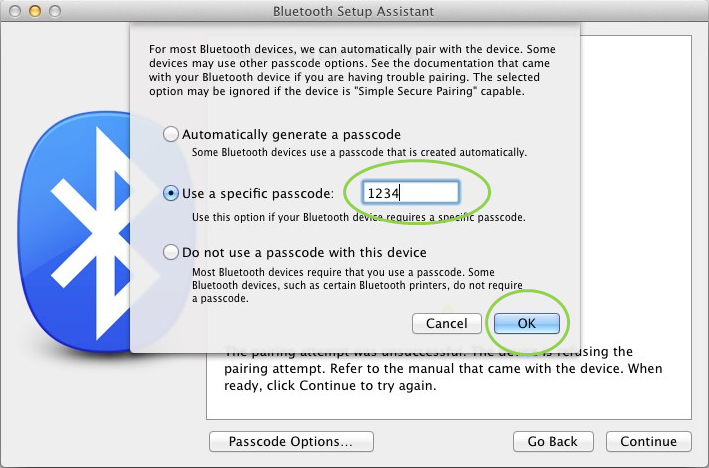
- Scegli “Use a specific passcode” (Utilizza una password specifica) e inserisci "1234", quindi fai clic su "OK".
- Confermare la connessione e la password sul tuo mattoncino.
- Ora vedrai una finestra che conferma che il tuo mattoncino è stato accoppiato con successo. Clicca su "Quit" (Esci).
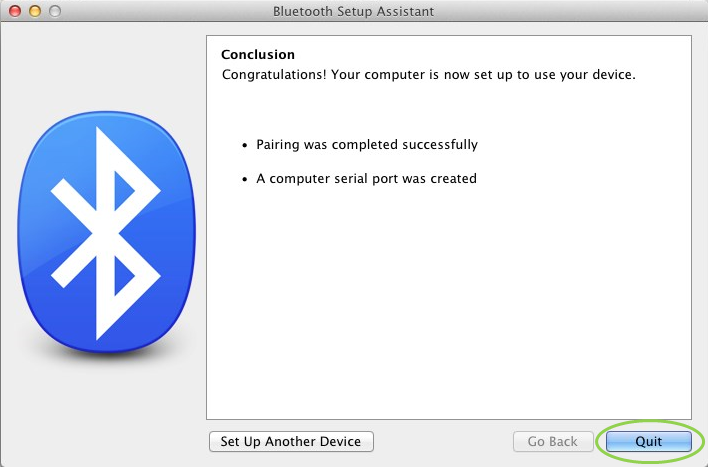
- Il tuo mattoncino verrà ora visualizzato nell'elenco dei dispositivi Bluetooth noti.
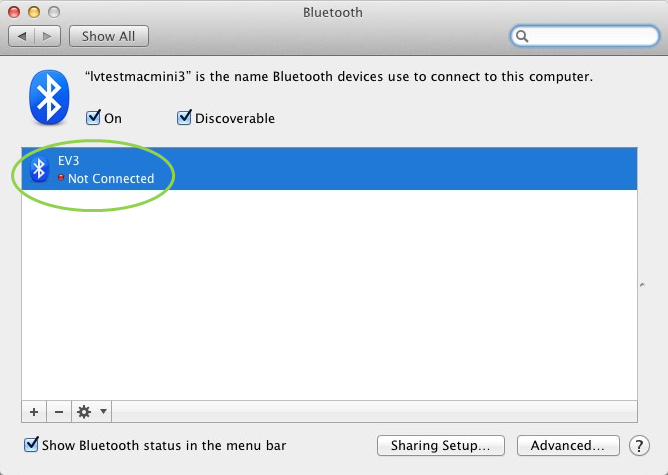
- Ripetere i passaggi 1-7.
Windows
- Nel software EV3 del tuo Pc, accedere alla pagina Hardware in basso a destra e cliccare su “Refresh” (Aggiorna).
- Il tuo mattoncino intelligente EV3 sarà disponibile tramite Bluetooth. Fare clic sul pulsante sotto l'icona Bluetooth per connettersi.
- Il tuo computer si connetterà al tuo mattoncino. Potrebbe essere necessario confermare la connessione e la password "1234" sul tuo mattoncino in questa fase.
Se non riesci a vedere il mattoncino nella pagina Hardware nell'applicazione, continua con i seguenti passaggi.
- Apri il menu Start e fai clic su "Dispositivi e stampanti".
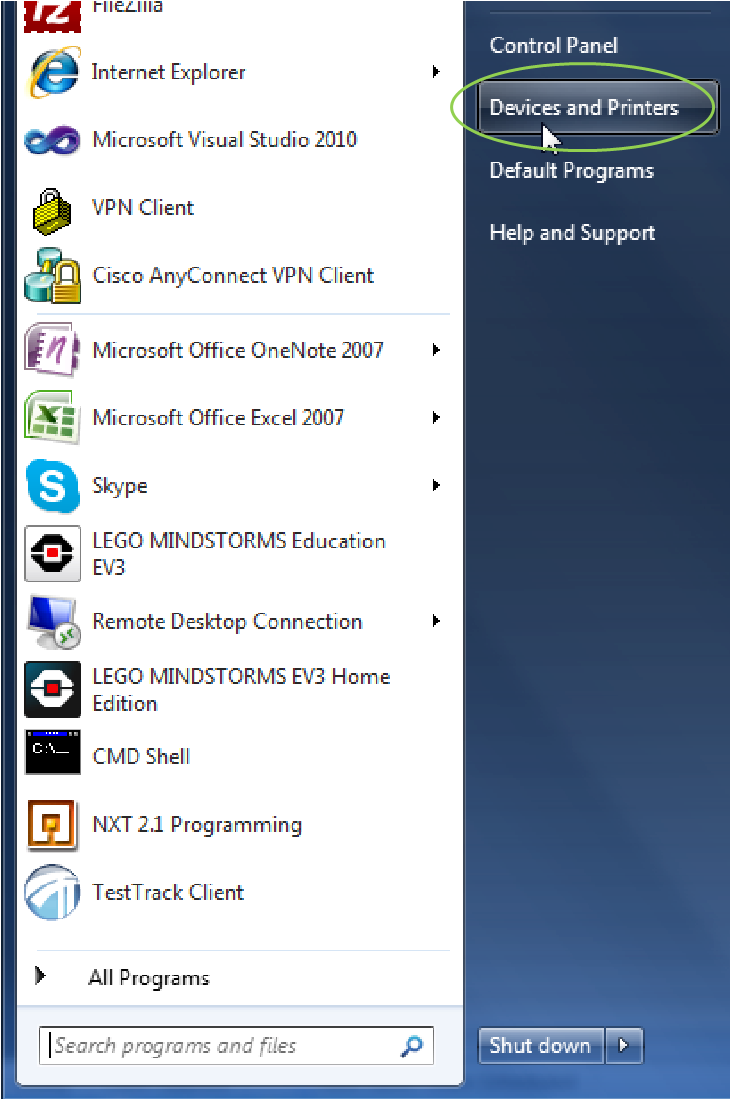
- Fare clic su 'Aggiungi un dispositivo'.
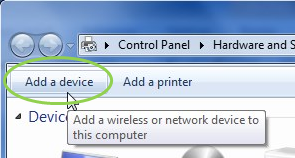
- Ci vorrà un momento affinché il tuo mattoncino venga visualizzato nell'elenco dei dispositivi disponibili. Selezionalo e premi "Avanti".
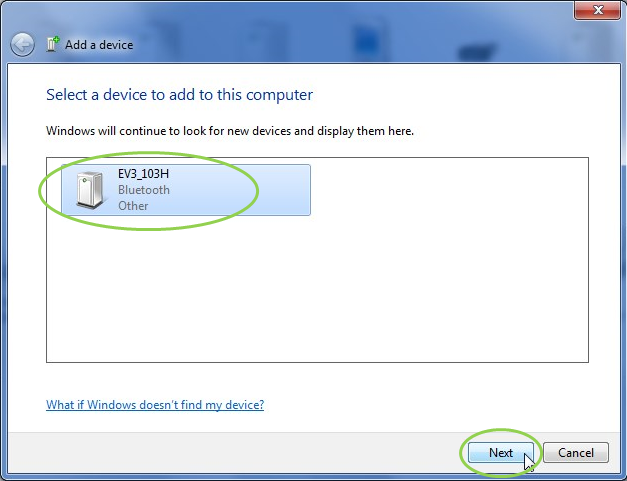
- Il PC proverà a collegarsi al tuo mattoncino intelligente EV3.
- Confermare la connessione e la password sul mattoncino.
- Sul PC, immettere "1234" come sotto e fare clic su "Avanti".
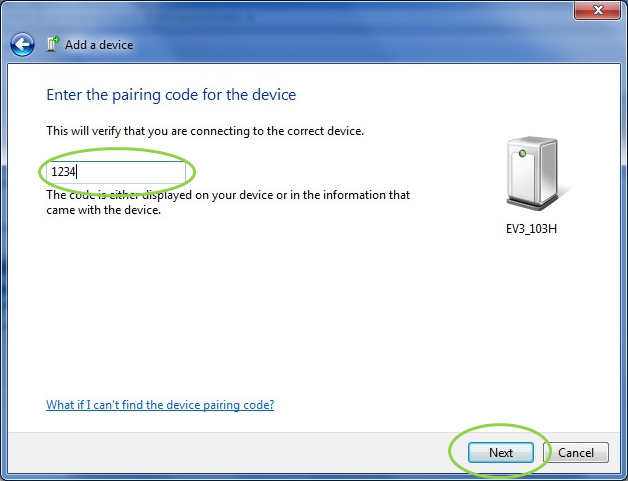
- Al termine del processo di accoppiamento, verrà visualizzata la seguente finestra.
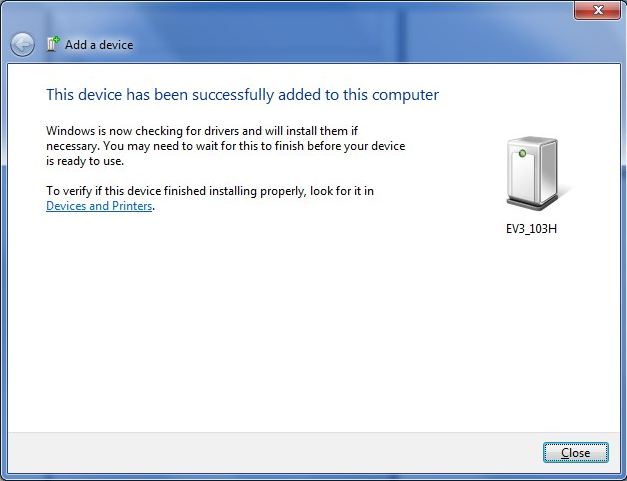
- Ripetere i passaggi 1-3.
Se riscontri difficoltà o problemi, mettiti in contatto con noi.