连接 LEGO® MINDSTORMS® EV3 至蓝牙®

    您可以使用蓝牙®无线连接LEGO® MINDSTORMS® EV3 程序块和EV3软件!蓝牙的可达范围比Wi-Fi小,但功耗更低,您无需使用无线路由器进行设置。

    按照以下步骤在程序块上设置蓝牙
     

    1. 使用箭头按钮在程序块的“设置”屏幕中选择蓝牙。将出现一个弹出窗口,其中包含选项列表。
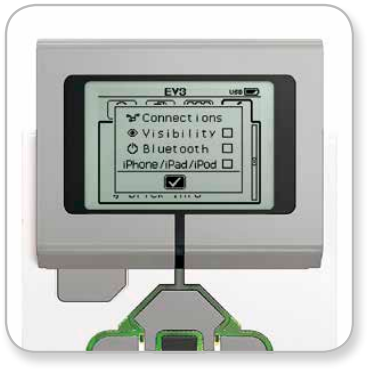
      Photo of EV3 screen showing settings menu. Under header of connections, it has options of visibility, Bluetooth, and iPhone/iPad/iPod with a blank checkbox next to each.  
    2. 使用向上和向下按钮进行导航,突出显示“蓝牙”,然后按下中间的按钮,蓝牙框中将出现一个复选标记。您已启用蓝牙,并且应在程序块显示屏的左上角看到一个蓝牙图标。

      如果选中“iPhone / iPad / iPod”选项,除了iPhone,iPad或iPod Touch等iOS设备外,您将无法连接任何其它设备。想要连接其他设备,请确保不要选中此选项。
       

    要将软件连接到程序块:

    macOS
     

    1. 启动LEGO® MINDSTORMS® EV3软件,使用USB线将程序块连接到Mac。
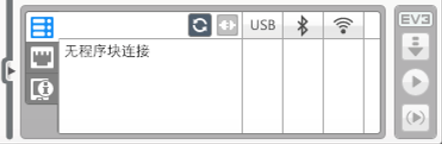
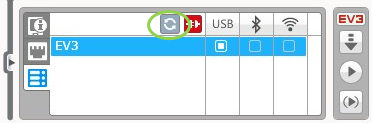
    2. 在EV3软件中,转到硬件页面后单击刷新。

      In the EV3 software page, at the center-top of the page, an icon is darker than the others. It is a refresh symbol, with two curved arrows leading to each other in a circle.  
    3. 将出现一个新弹出窗口,列出所有先前连接和可用的程序块。显示程序块可能需要几分钟。找到要连接的那个程序块并选择它。

      A dialogue box on a desktop computer that lists Bluetooth devices, prompting the user to chose one to connect to. 
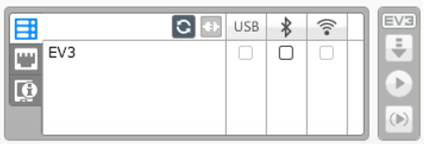
    4. 蓝牙现在呈现为可连接的类型。单击蓝牙图标下方的按钮选择它。

      A screen from the EV3 software. Two check boxes are open, one under USB and one under the Bluetooth symbol. 
    5. 确认程序块的连接和密码。
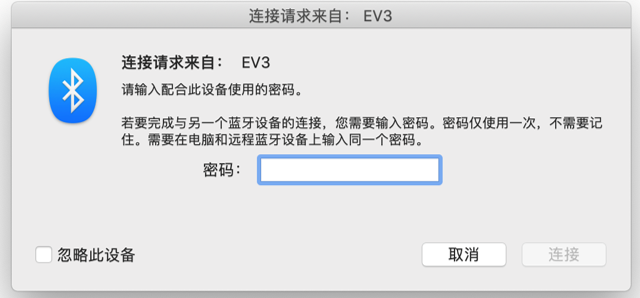
    6. “来自EV3配对请求”窗口中输入“1234”作为密码。

      Dialogue box on a computer that asks for a passcode for Bluetooth connection. There is a text field for where to enter the passcode. 
    7. 程序块现在将使用蓝牙连接到Mac。
      如果您的程序块从未显示在可用的程序块列表,请重新启动程序块并继续执行以下步骤:
    8. 单击应用程序坞中的系统偏好设置选项图标,然后选择蓝牙。

      Image of System Preferences menu on computer.  
    9. 蓝牙设置助理将搜索通过蓝牙可用的所有设备。可能需要几分钟才会显示EV3 程序块。如果出现,请选择它并单击”连接“。
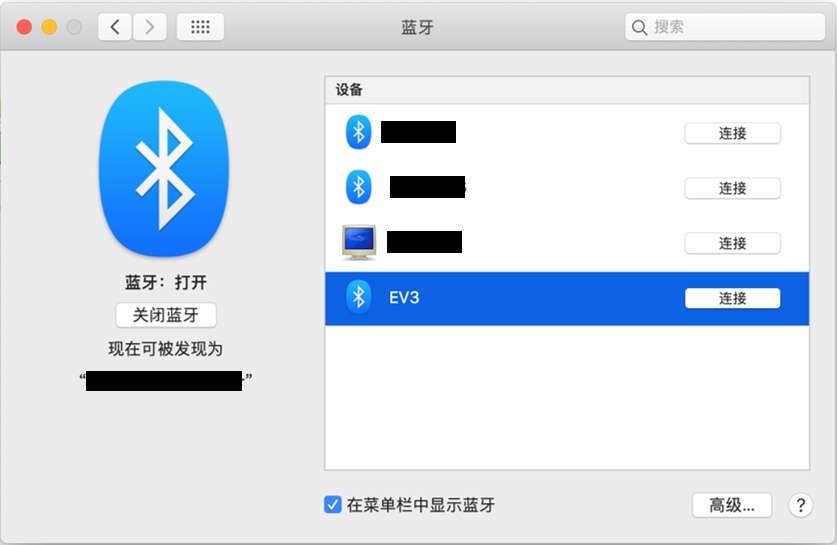
      Bluetooth window on desktop computer. There are a list of Bluetooth devices to choose from. EV3 is highlighted. 
    10. 确认EV3 程序块上的连接和密码。
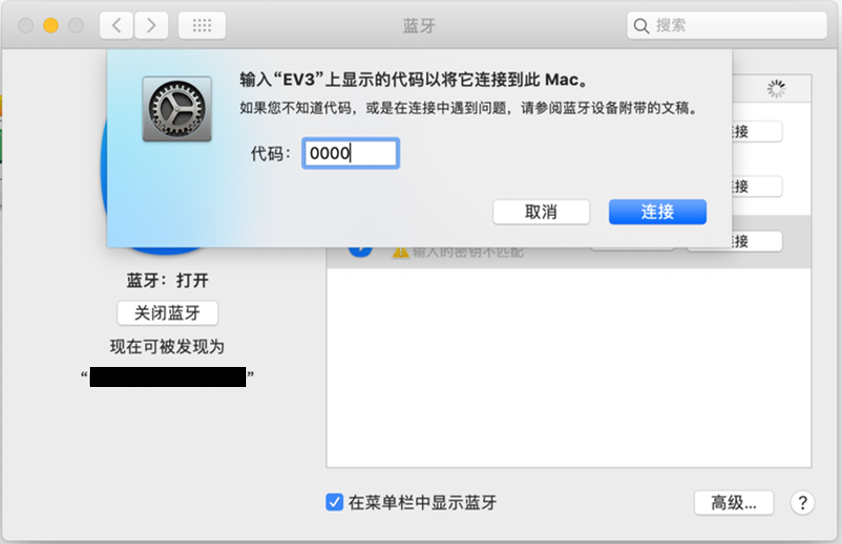
    11. 第一次尝试很可能会失败,因为Mac的默认密码设置为“0000”。

      The window in the previous image now has a pop up over it. There’s a text field to enter the passcode needed to connect.  
    12. 更改密码并输入“1234”,然后单击“连接”

      Same window as earlier, with numbers 1234 entered. 
    13. 现在您将看到一个窗口,确认您的EV3 程序块已成功连接并配对。点击“退出”。
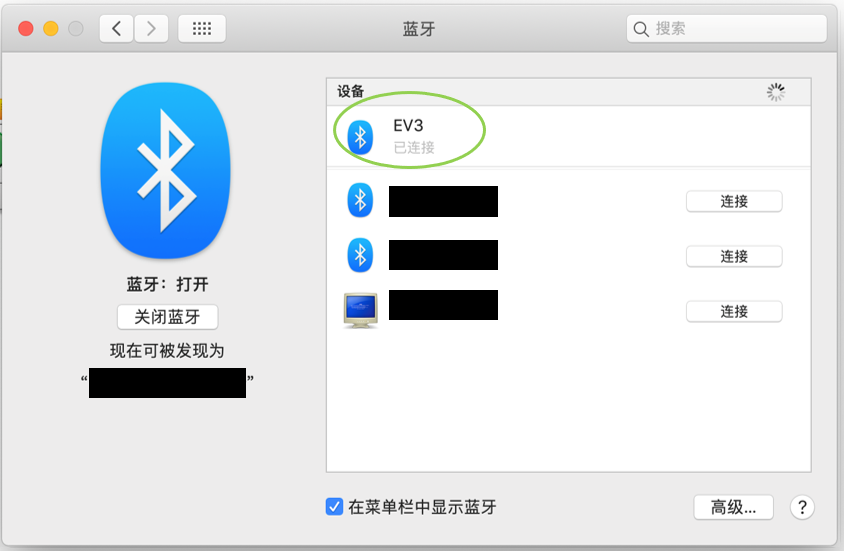
      The computer window with the list of Bluetooth devices is back, but this time EV3 is connected. 
    14. 您的EV3 程序块现在将显示在已知蓝牙设备列表中。
    15. 重复步骤1-7。

    Windows

    1. 在EV3软件中,转到硬件页面后单击刷新。

      In the EV3 software page, at the center-top of the page, an icon is circled. It is a refresh symbol, with two curved arrows leading to each other in a circle. 
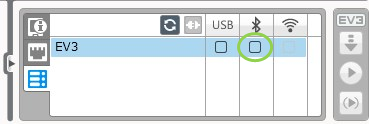
    2. 您的程序块将在蓝牙上可用。单击蓝牙图标下方的按钮进行连接。

      A screen from the EV3 software. Two check boxes are open, one under USB and one under the Bluetooth symbol. The check box under the Bluetooth symbol is circled. 
    3. 您的电脑将连接到程序块。您可能需要在此阶段确认程序块上的连接和密码“1234”。
       

    如果在App的硬件页面中看不到程序块,请继续执行以下步骤。
     

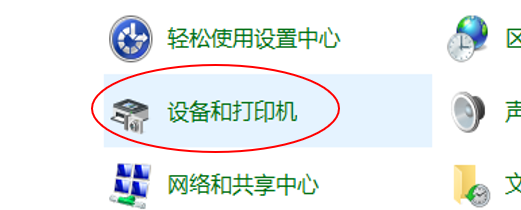
    1. 打开开始菜单后单击“设备和打印机”。

      Start menu on a windows PC. In the center left, Printers and Devices is highlighted. 
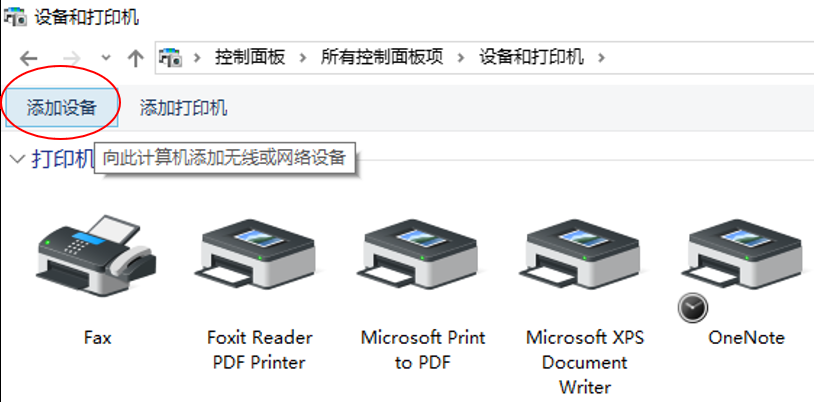
    2. 单击“添加设备”。

      In the top left of the Printers and Devices window, the button for Add Device is circled. 
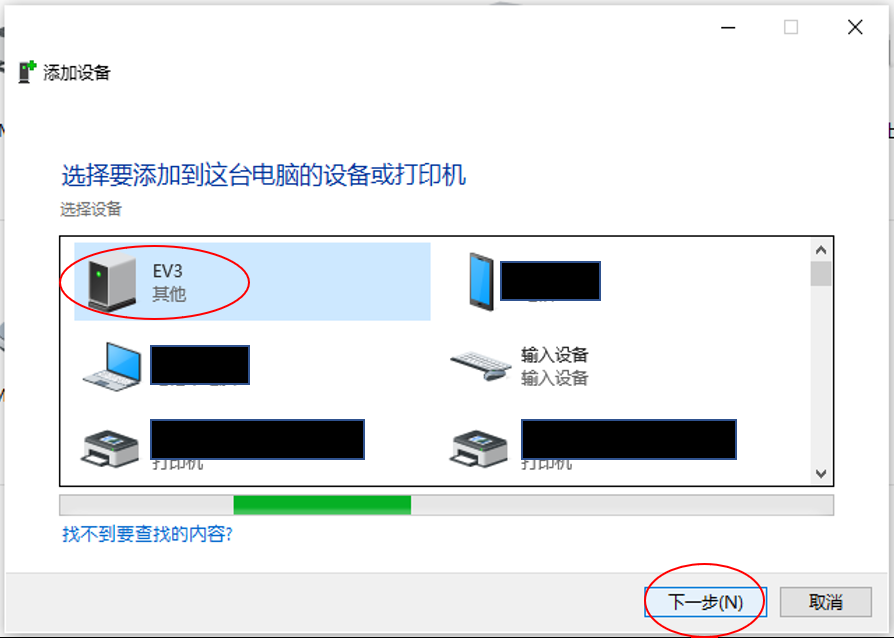
    3. 您的程序块需要一点时间才会显示在可用设备列表中。选择它并按“下一步”。

      Computer window that says Select a device to add to this computer. A list of printers and devices is shown, and next to a GPU image says EV3. The image and name of the device is circled. 
    4. PC将尝试连接到程序块。
    5. 确认程序块的连接和密码。
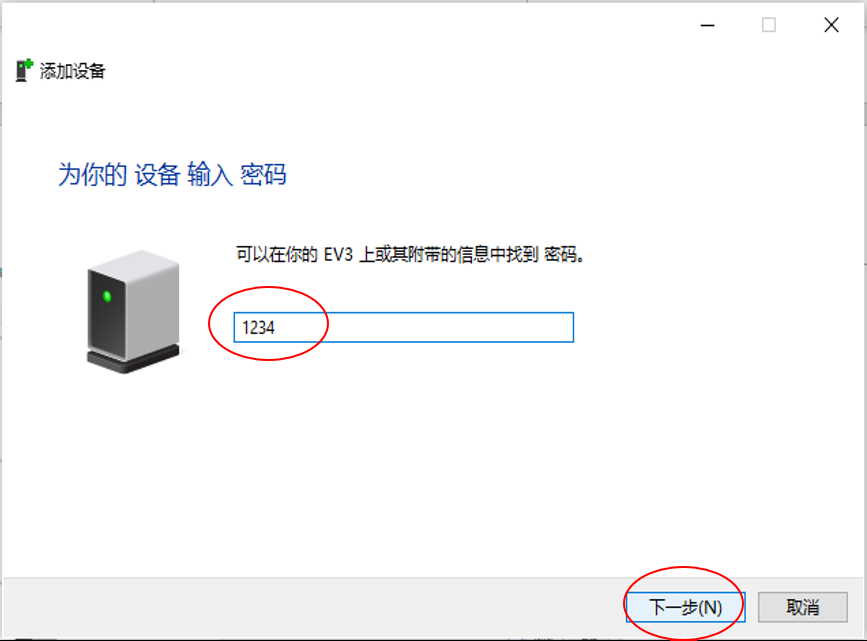
    6. 如下所示在PC上输入“1234”,然后单击“下一步”。

      Computer window that says Enter the pairing code for this device. On the window is a typing field circled with the numbers 1234 inside.  
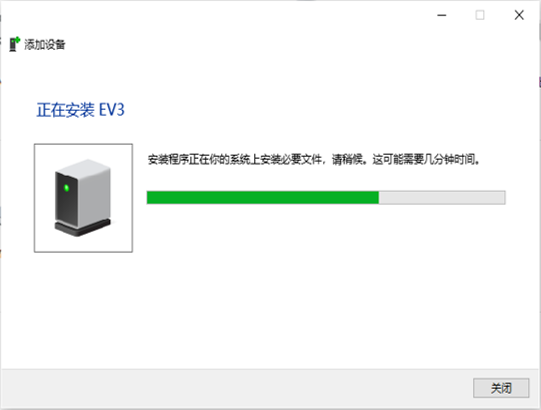
    7. 配对过程完成后,将弹出以下窗口。

      Window telling user that connection is in progress. 
    8. 重复步骤1-3。

    如有问题请与我们联系