Établir une connexion Bluetooth® avec le logiciel LEGO® MINDSTORMS® EV3 (MAC/PC)
Vous pouvez utiliser le Bluetooth® pour établir une communication sans fil entre la P-Brick LEGO® MINDSTORMS® et le logiciel EV3 ! Le Bluetooth a une portée plus limitée que le Wifi, mais utilise moins d'énergie et il n'est pas nécessaire d'avoir un routeur sans fil pour le configurer.
Premièrement, suivez ces étapes pour configurer le Bluetooth sur votre P-Brick :
1. Utilisez les boutons fléchés pour sélectionner le Bluetooth dans l'écran « Réglages » de la P-brick. Une fenêtre contextuelle s'affiche avec une liste d'options.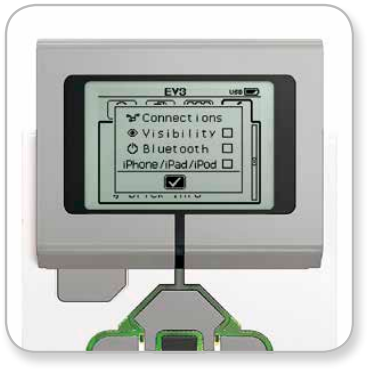
2. Au moyen des flèches haut et bas de navigation, mettez « Bluetooth » en surbrillance, puis appuyez sur le bouton central. La case Bluetooth sera cochée. Vous avez activé le Bluetooth et vous devriez voir une icône s'afficher en haut à gauche de l'affichage de la P-Brick.
Si l'option « iPhone/iPad/iPod » est cochée, vous ne pourrez pas vous connecter à un périphérique autre qu'un appareil iOS comme un iPhone, un iPad ou un iPod Touch. Pour toutes les autres connexions, laissez la case décochée.
Pour connecter votre logiciel à votre P-Brick :
macOS :
1. Lancez le logiciel LEGO® MINDSTORMS® EV3 et connectez votre P-Brick à votre Mac au moyen du câble USB.
2. Dans le logiciel EV3, allez à la page du matériel et cliquez sur « Actualiser ».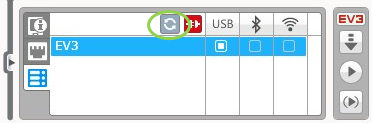
3. Une nouvelle fenêtre s'ouvre, répertoriant toutes les P-Bricks précédemment connectées et disponibles. Vous devrez éventuellement patienter quelques minutes avant que votre P-Brick ne s'affiche. Sélectionnez celle à laquelle vous souhaitez vous connecter.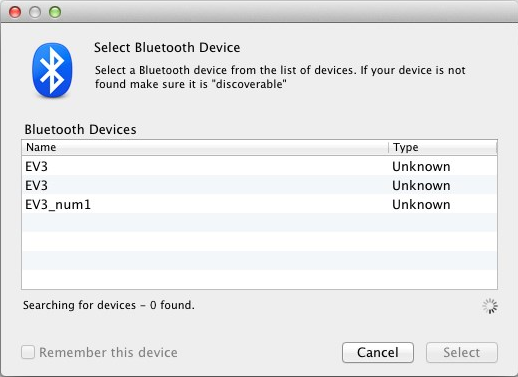
4. La connexion par Bluetooth est maintenant activée. Cliquez sur le bouton situé sous l'icône Bluetooth pour la sélectionner.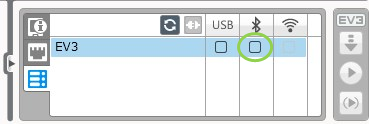
5. Confirmez la connexion et le mot de passe de votre P-Brick.
6. Saisissez le mot de passe « 1234 » dans la fenêtre « Demande d'appairage depuis : EV3 ».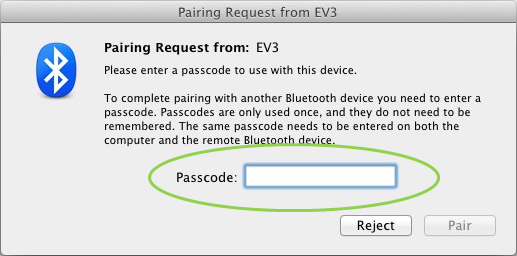
7. La P-Brick est maintenant connectée à votre Mac par Bluetooth.
Si votre P-Brick ne s'affiche pas dans la liste des P-Bricks disponibles, redémarrez votre P-Brick et continuez en suivant les étapes ci-dessous :
8. Cliquez sur l'icône  dans le Dock et cliquez sur « Bluetooth ».
9. Cliquez sur « Configurer un nouvel appareil » ou « Ajouter un appareil ».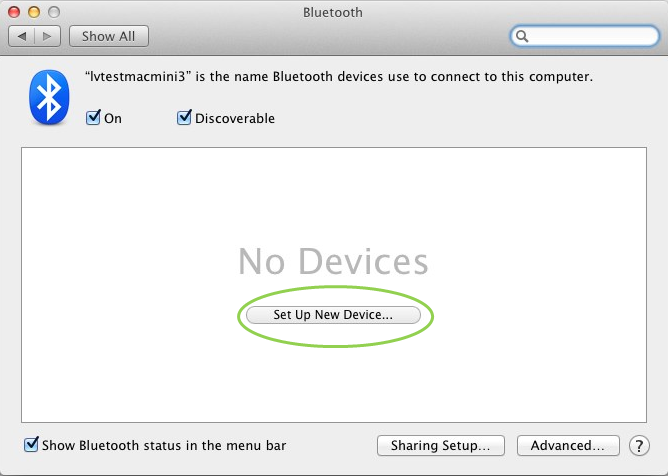
10. L'assistant de configuration Bluetooth recherche tous les appareils disponibles par Bluetooth. Vous devrez éventuellement patienter quelques minutes avant que votre P-Brick ne s'affiche. Une fois qu'elle est affichée, sélectionnez-la et cliquez sur « Continuer ».
11. Confirmez la connexion et le mot de passe de votre P-Brick.
12. Il est fort probable que cette première tentative soit un échec car le mot de passe par défaut du Mac est « 0000 ».
13. Cliquez sur « Options de mot de passe ».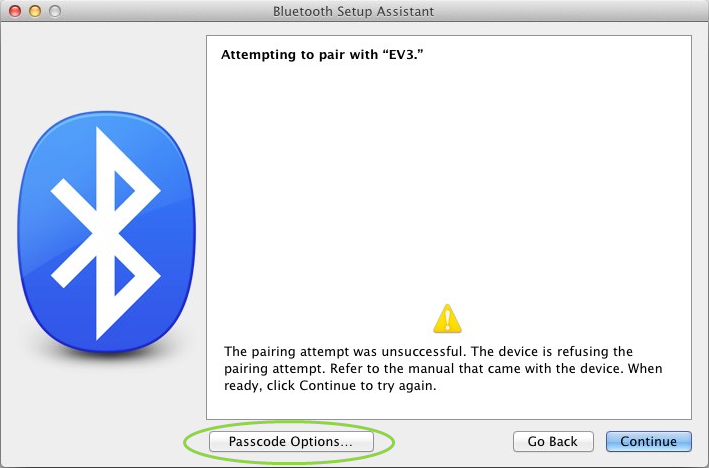
14. Choisissez « Utiliser un mode de passe spécifique » et saisissez « 1234 », puis cliquez sur « OK »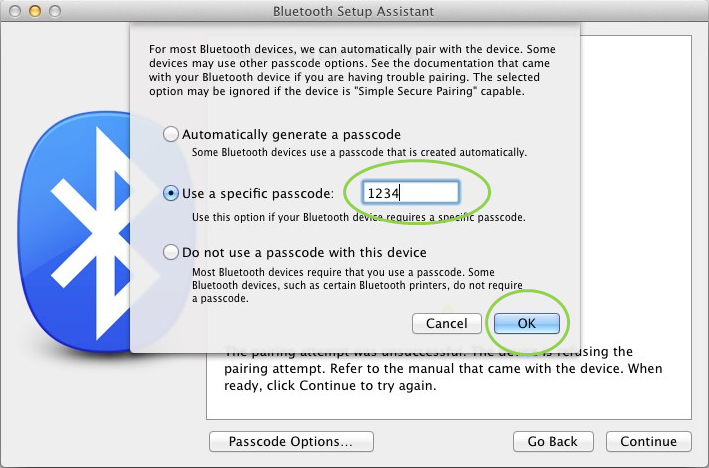
15. Confirmez la connexion et le mot de passe sur votre P-Brick.
16. Une fenêtre s'affiche, confirmant que votre P-Brick a bien été appairée. Cliquez sur « Quitter ».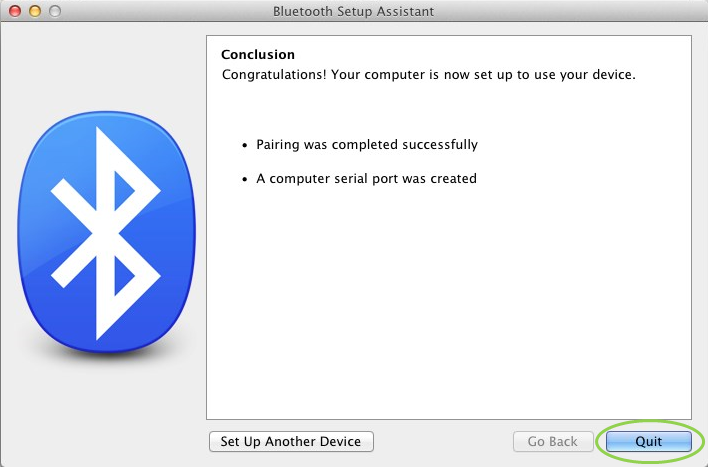
17. Votre P-Brick s'affiche désormais dans la liste des appareils Bluetooth reconnus.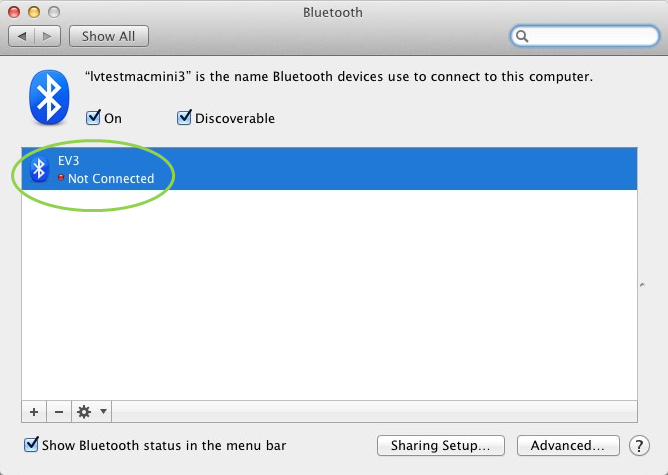
18. Répétez les étapes 1 à 7.
Windows :
1. Dans le logiciel EV3, allez à la page du matériel et cliquez sur « Actualiser ».
2. Votre P-Brick est disponible sur Bluetooth. Cliquez sur le bouton sous l'icône Bluetooth pour vous connecter.
3. Votre ordinateur se connecte à votre P-Brick. À ce stade, il faudra éventuellement confirmer la connexion et le mot de passe « 1234 » sur votre P-Brick.
Si la P-Brick ne s'affiche pas à la page du matériel dans l'application, continuez en suivant les étapes ci-dessous :
1. Ouvrez le menu Démarrer et cliquez sur « Périphériques et imprimantes ».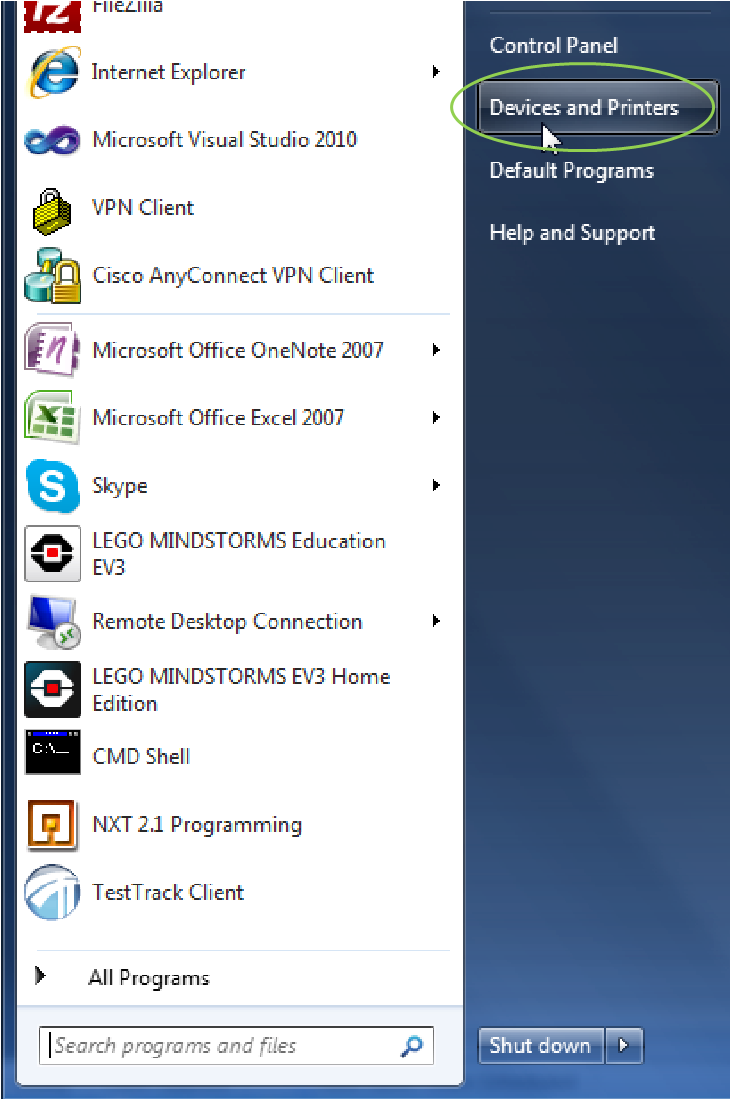
2. Cliquez sur « Ajouter un périphérique ».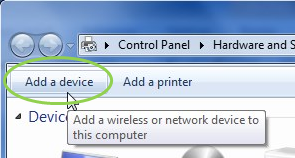
3. Vous devrez patienter un instant pour que votre P-Brick s'affiche dans la liste des périphériques disponibles. Sélectionnez-la et appuyez sur « Suivant ».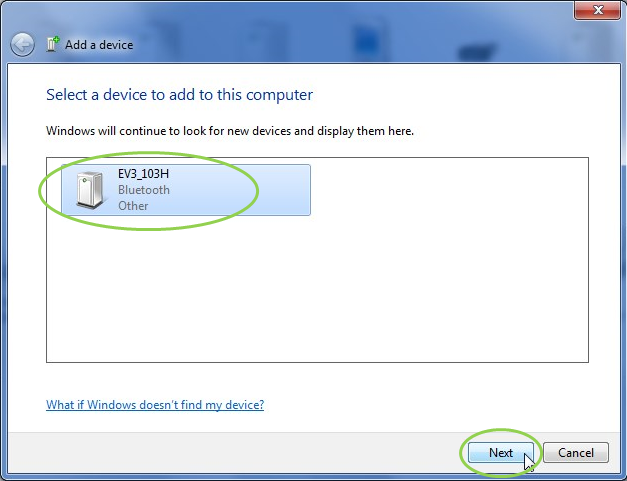
4. Votre ordinateur essayera de se connecter à la P-Brick.
5. Confirmez la connexion et le mot de passe sur la P-Brick.
6. Sur l'ordinateur, saisissez « 1234 » comme indiqué ci-dessous et cliquez sur « Suivant ».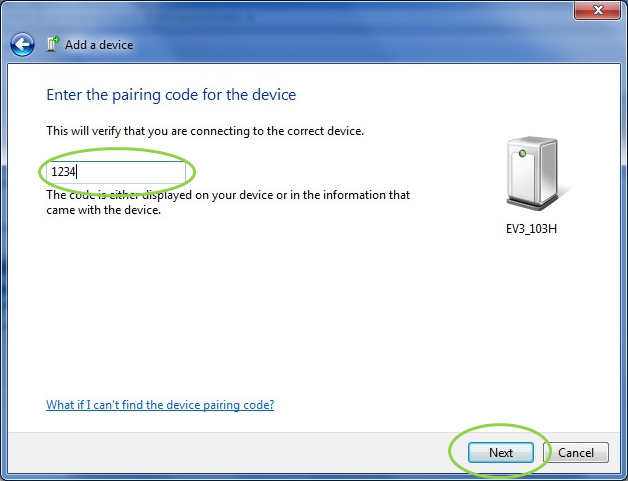
7. Une fois l'appairage terminé, la fenêtre suivante s'affiche.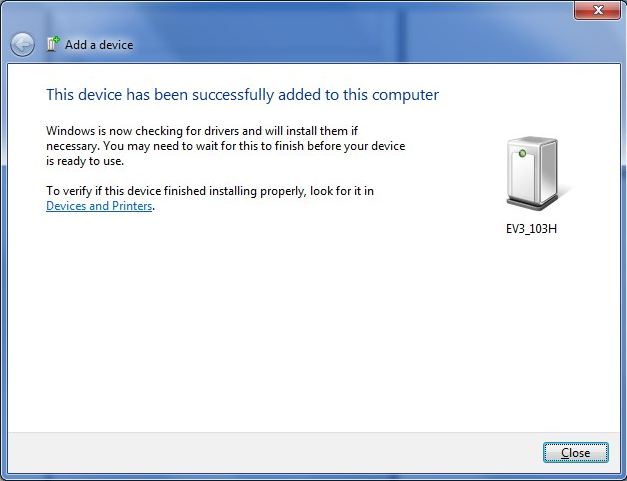
8. Répétez les étapes 1 à 3.
En cas de problèmes quelconques, contactez-nous.