LEGO® MINDSTORMS® EV3 cihazınızı Bluetooth'a bağlama

LEGO® MINDSTORMS® EV3 Akıllı Tuğla ve EV3 Yazılımları arasında kablosuz iletişim kurmak için Bluetooth® kullanabilirsiniz! Bluetooth, Wi-Fi'den daha kısa bir menzile sahiptir ancak daha az güç kullanır ve kurmak için kablosuz yönlendiriciye ihtiyacınız yoktur.

Akıllı Tuğla'nızda Bluetooth'u ayarlamak için aşağıdaki adımları izleyin:

  1. Akıllı Tuğla'nın 'Ayarlar' ekranında Bluetooth öğesini seçmek için okları kullanın. Seçeneklerin listelendiği bir açılır pencere görünecektir.
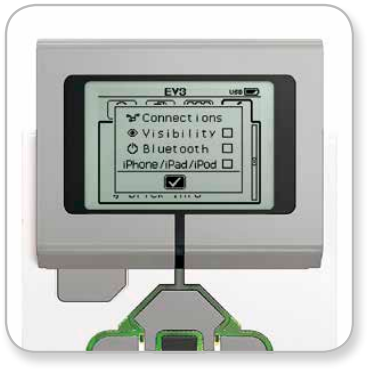
    Photo of EV3 screen showing settings menu. Under header of connections, it has options of visibility, Bluetooth, and iPhone/iPad/iPod with a blank checkbox next to each.  
  2. Gezinme için yukarı ve aşağı düğmelerini kullanarak 'Bluetooth'u seçin, ardından orta düğmeye basın; Bluetooth kutusunda bir onay işareti görünecektir. Bluetooth'u etkinleştirdiniz ve Akıllı Tuğla ekranının sol üst köşesinde bir simge görmelisiniz.
'iPhone/iPad/iPod' seçeneği işaretliyse, iPhone, iPad veya iPod Touch gibi bir iOS aygıtı dışında hiçbir şeye bağlanamazsınız. Diğer tüm bağlantılar için bu işareti kaldırın.


Yazılımınızı Akıllı Tuğla'ya bağlamak için 

macOS

  1. LEGO MINDSTORMS EV3 Yazılımını başlatın ve Akıllı Tuğla'nızı Mac'inize USB kablosunu kullanarak bağlayın.
  2. EV3 yazılımında, Donanım Sayfasına gidin ve Yenile'ye tıklayın.
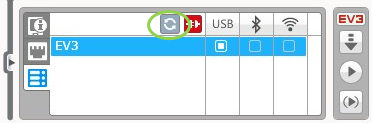
    In the EV3 software page, at the center-top of the page, an icon is circled. It is a refresh symbol, with two curved arrows leading to each other in a circle. 
  3. Yeni bir pencere açılacak ve önceden bağlanmış ve kullanılabilir tüm Akıllı Tuğlalar listelenecektir. Akıllı Tuğla'nızın görünmesi birkaç dakika sürebilir. Bağlanmak istediğinizi bulun ve seçin.
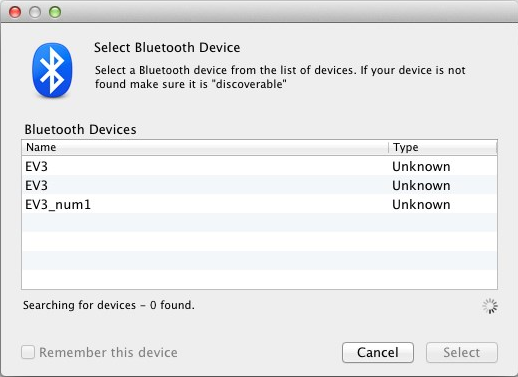
    A dialogue box on a desktop computer that lists Bluetooth devices, prompting the user to chose one to connect to. 
  4. Bluetooth artık bir bağlantı türü olarak kullanılabilecektir. Bluetooth simgesinin altındaki düğmeye tıklayarak onu seçin.
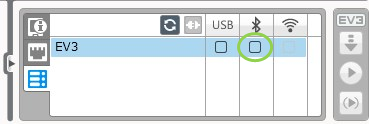
    A screen from the EV3 software. Two check boxes are open, one under USB and one under the Bluetooth symbol. The check box under the Bluetooth symbol is circled. 
  5. Akıllı Tuğla'nızda bağlantıyı ve şifreyi onaylayın.
  6. 'EV3'ten Eşleşme İsteği' penceresine şifre olarak "1234" girin.
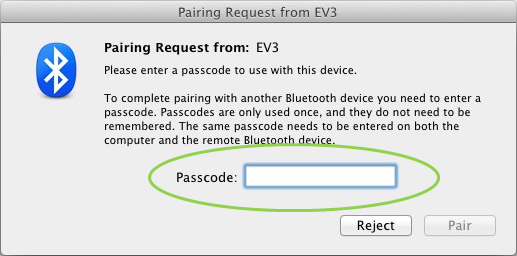
    Dialogue box on a computer that asks for a passcode for Bluetooth connection. There is a text field for where to enter the passcode that is circled. 
  7. Akıllı Tuğla artık Bluetooth kullanarak Mac'inize bağlanacaktır.
Akıllı Tuğlanız kullanılabilir Akıllı Tuğla'lar listesinde görünmüyorsa, Akıllı Tuğla'nızı yeniden başlatın ve aşağıdaki adımlarla devam edin:


  1. Yuva'daki Sistem Tercihleri simgesine settings icon with gears.  tıklayın ve Bluetooth'u seçin.
    Image of System Preferences menu on computer. The Bluetooth symbol is circled.  
  2. 'Yeni Cihaz Kur' veya 'Yeni Cihaz Ekle'yi seçin.
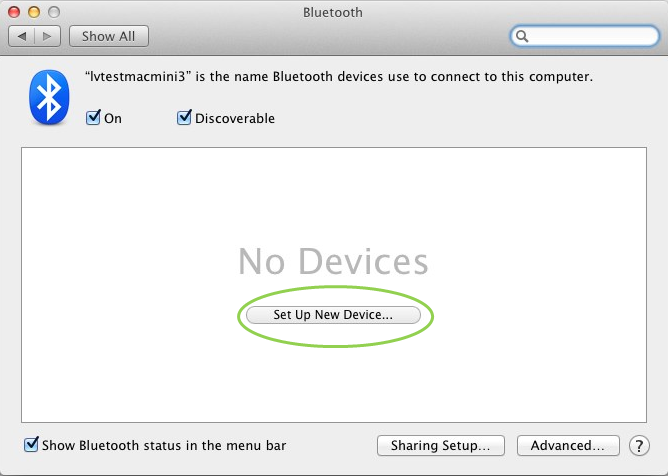
    Bluetooth window on desktop computer. The checkboxes are checked for On and Discoverable, as well as Show Bluetooth status in the menu bar. In the center of the window, in an empty field, a button that says Set Up New Device is Circled. 
  3. Bluetooth Kurulum Yardımcısı, Bluetooth üzerinden kullanılabilen tüm cihazları arayacaktır. Akıllı Tuğla'nızın gösterilmesi birkaç dakika sürebilir. Gösterildiğinde, onu seçin ve 'Devam et'e tıklayın.
    Window on computer that displays Bluetooth devices to choose from. Text says Select a Bluetooth device from the list of devices. If your device isn't found, make sure it is discoverable. 
  4. Akıllı Tuğla'nızdan bağlantıyı ve şifreyi onaylayın.
  5. Mac'in varsayılan şifresi "0000" olarak ayarlandığı için bu ilk deneme büyük olasılıkla başarısız olacaktır.
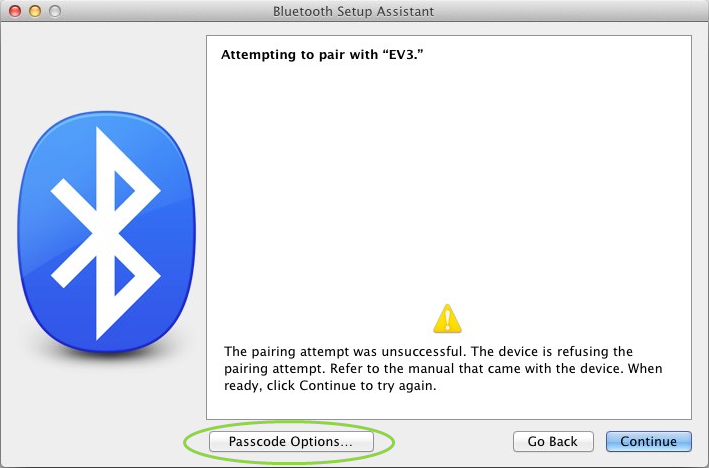
  6. 'Şifre Seçenekleri'ne tıklayın.
    Window on computer called Bluetooth Setup Assistant. The text at the bottom says the pairing attempt was unsuccessful. There's a button at the bottom-center of the window that says Passcode Options and is circled. 
  7. 'Belirli bir şifre kullan'ı seçin ve ""1234"" girip 'Tamam'a tıklayın
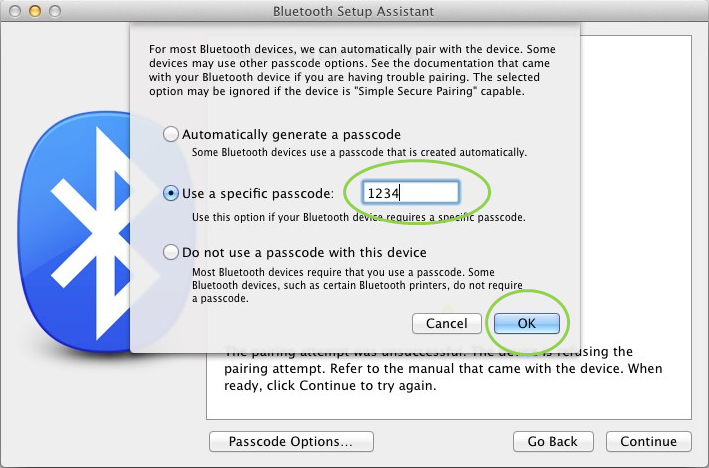
    The window in the previous image now has a pop up over it, the second of three bullet points are clicked, and the text reads Use a specific passcode. The text field reads 1234. That text field and the OK button at the bottom are circled. 
  8. Akıllı Tuğla'nızdan bağlantıyı ve şifreyi onaylayın.
  9. Şimdi Akıllı Tuğla'nızın başarıyla eşleştirildiğini onaylayan bir pencere göreceksiniz. 'Çık'a tıklayın.
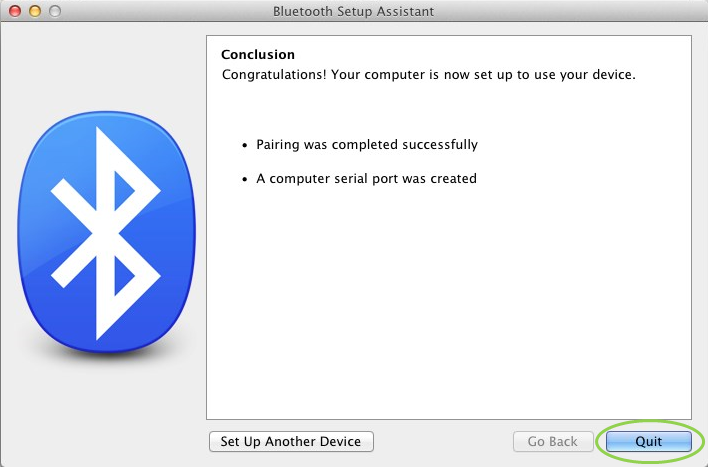
    Computer window that says that the Bluetooth connection was successful. The Quit button at the bottom right is circled. 
  10. Akıllı Tuğla'nız artık bilinen Bluetooth cihazları listesinde görünecektir.
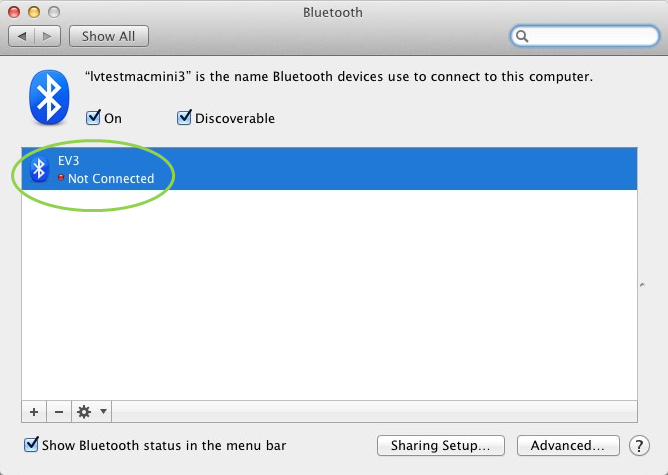
    The computer window with the list of Bluetooth devices is back, but this time the item EV3 is present. There's a red dot next to the words Not Connected.  The device is circled on the list. 
  11. 1-7 arası adımları tekrarlayın.

Windows

  1. EV3 yazılımında, Donanım Sayfasına gidin ve Yenile'ye tıklayın.
    In the EV3 software page, at the center-top of the page, an icon is circled. It is a refresh symbol, with two curved arrows leading to each other in a circle. 
  2. Akıllı Tuğla'nız Bluetooth üzerinden erişilebilir olacaktır. Bağlanmak için Bluetooth simgesinin altındaki düğmeye tıklayın.
    A screen from the EV3 software. Two check boxes are open, one under USB and one under the Bluetooth symbol. The check box under the Bluetooth symbol is circled. 
  3. Bilgisayarınız  Akıllı Tuğla'nıza bağlanacaktır. Bu aşamada Akıllı Tuğla'nızda bağlantıyı ve '1234' şifresini onaylamanız gerekebilir.

Uygulamadaki Donanım Sayfasında Akıllı Tuğla'yı göremiyorsanız, aşağıdaki adımlarla devam edin.
 

  1. Başlat menüsünü açın ve 'Aygıtlar ve Yazıcılar'a tıklayın.
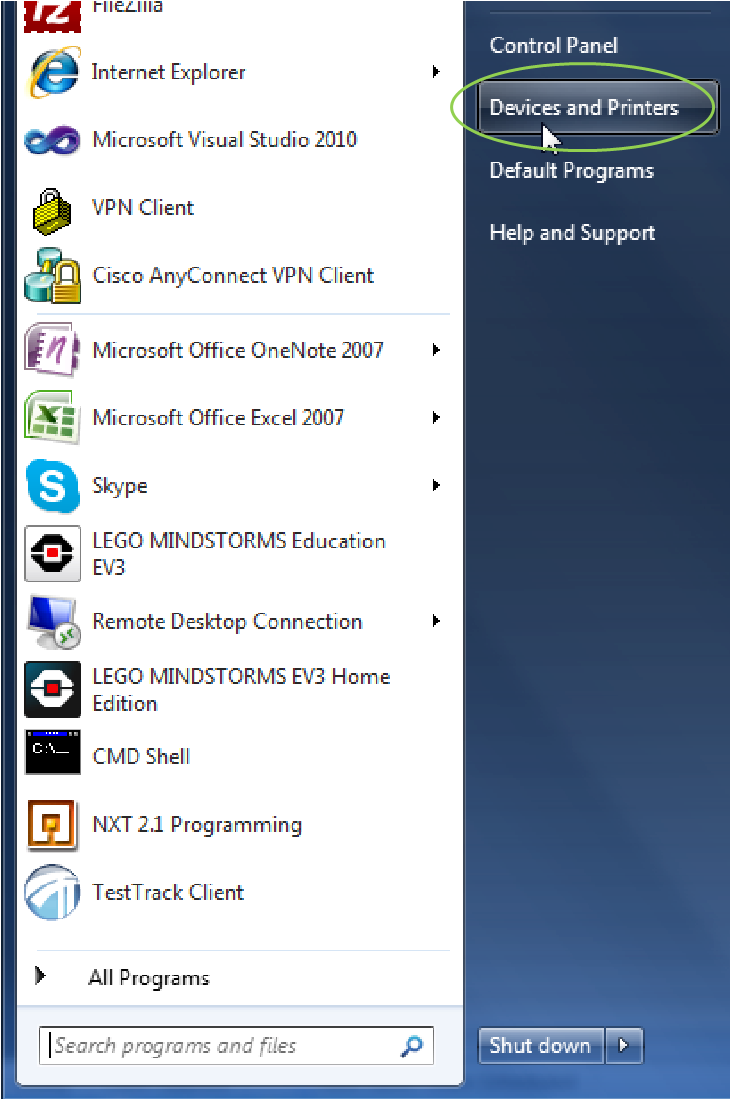
    Start menu on a windows PC. In the top-right corner, the second button from the top, Devices and Printers, is circled. 
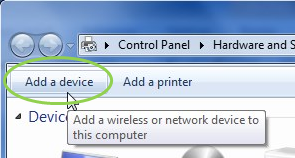
  2. 'Bir cihaz ekle'ye tıklayın.
    Top left corner of a computer window shown. Button that says Add a device is circled. 
  3. Akıllı Tuğla'nızın kullanılabilir cihazlar listesinde görünmesi biraz zaman alacaktır. Bunu seçin ve 'İleri'ye basın.
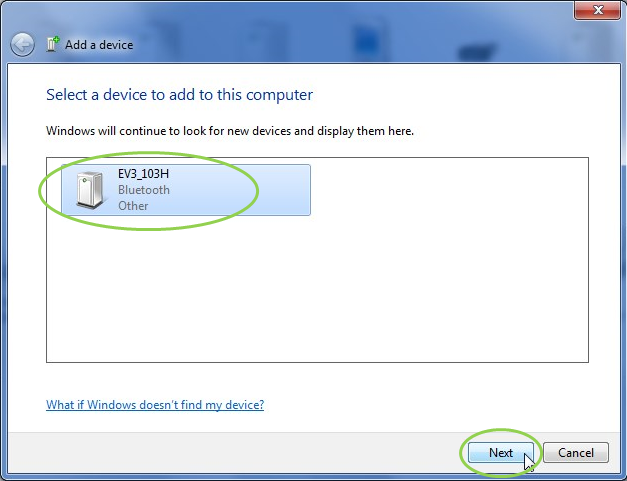
    Computer window that says Select a device to add to this computer. A space for a list is shown, and next to a GPU image says EV3_103H. The image and name of the device is circled. 
  4. PC, Akıllı Tuğla'ya bağlanmaya çalışacaktır.
  5. Akıllı Tuğla'dan bağlantıyı ve şifreyi onaylayın.
  6. PC'de, aşağıdaki gibi ""1234"" girin ve 'İleri'ye tıklayın.
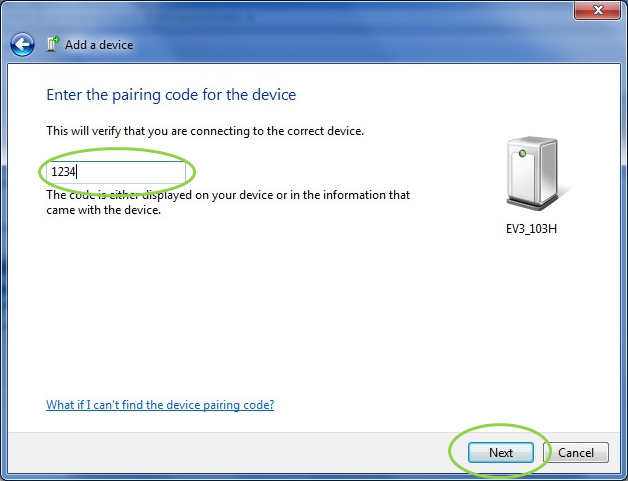
    Computer window that says Enter the pairing code for this device. On the window is a typing field circled with the numbers 1234 inside. The Next button at the bottom right is circled. 
  7. Eşleştirme işlemi tamamlandığında, aşağıdaki pencere açılacaktır.
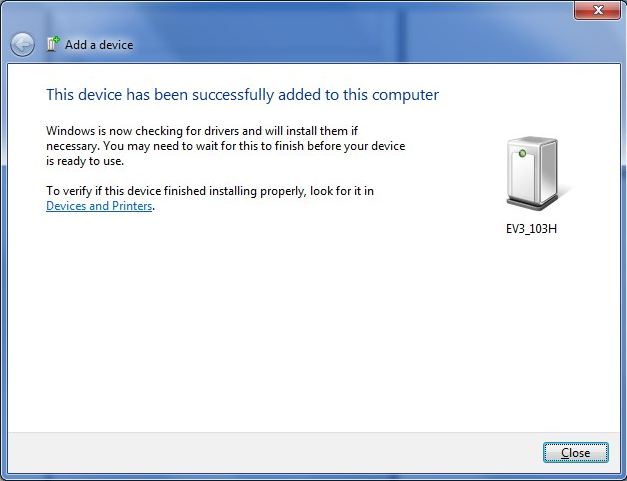
    Computer window that says the device has been successfully added to the computer.  
  8. 1-3 arası adımları tekrarlayın.

Herhangi bir sorununuz varsa, bizimle iletişime geçin.